¶ Supported devices
The Google Cast Proxy supports Google Chromecast devices gen 1, gen 2, Ultra and gen 3.
In addition, some TVs support built in Google Cast. See more information for the different TV vendors in the separate pages linked below.
¶ Philips
¶ LG
¶ Samsung
¶ Active Sessions
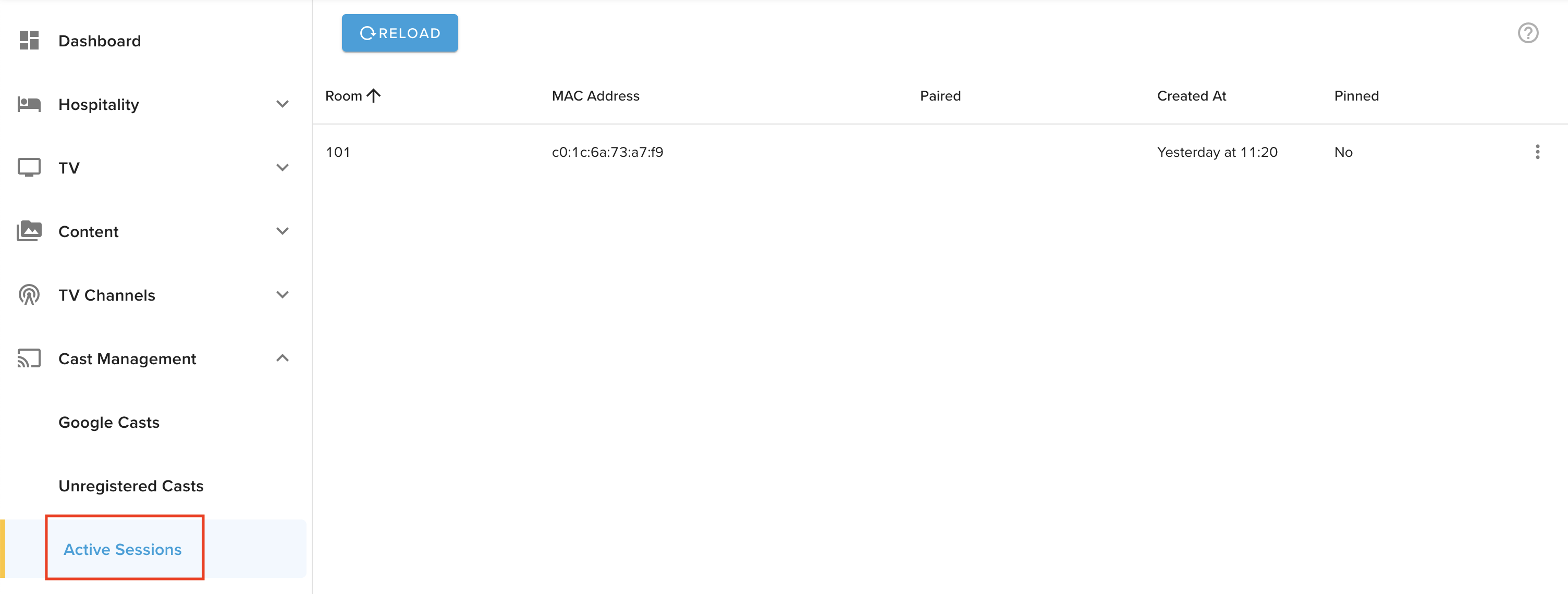
On this page you can view all active pairing sessions. The list will show what room, device address, the name of the paired cast, creation date and whether it is made permanent or not (pinned). The list must be reloaded manually.
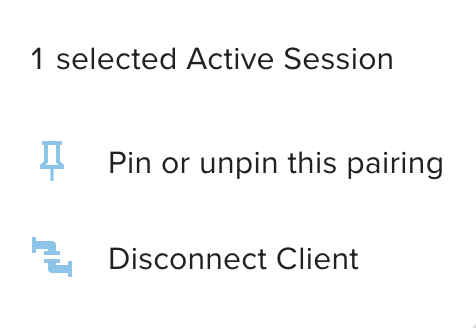
You may also right click on an active session to pin it or to disconnect it. When disconnected, the Chromecast will be kicked back to show QR code and all casting will cease. For built in Google Cast TVs, disconnects will occur immediately if a user is not casting, but if a user is actively casting it will disconnect when a user discontinues their running cast session.
¶ Event Log
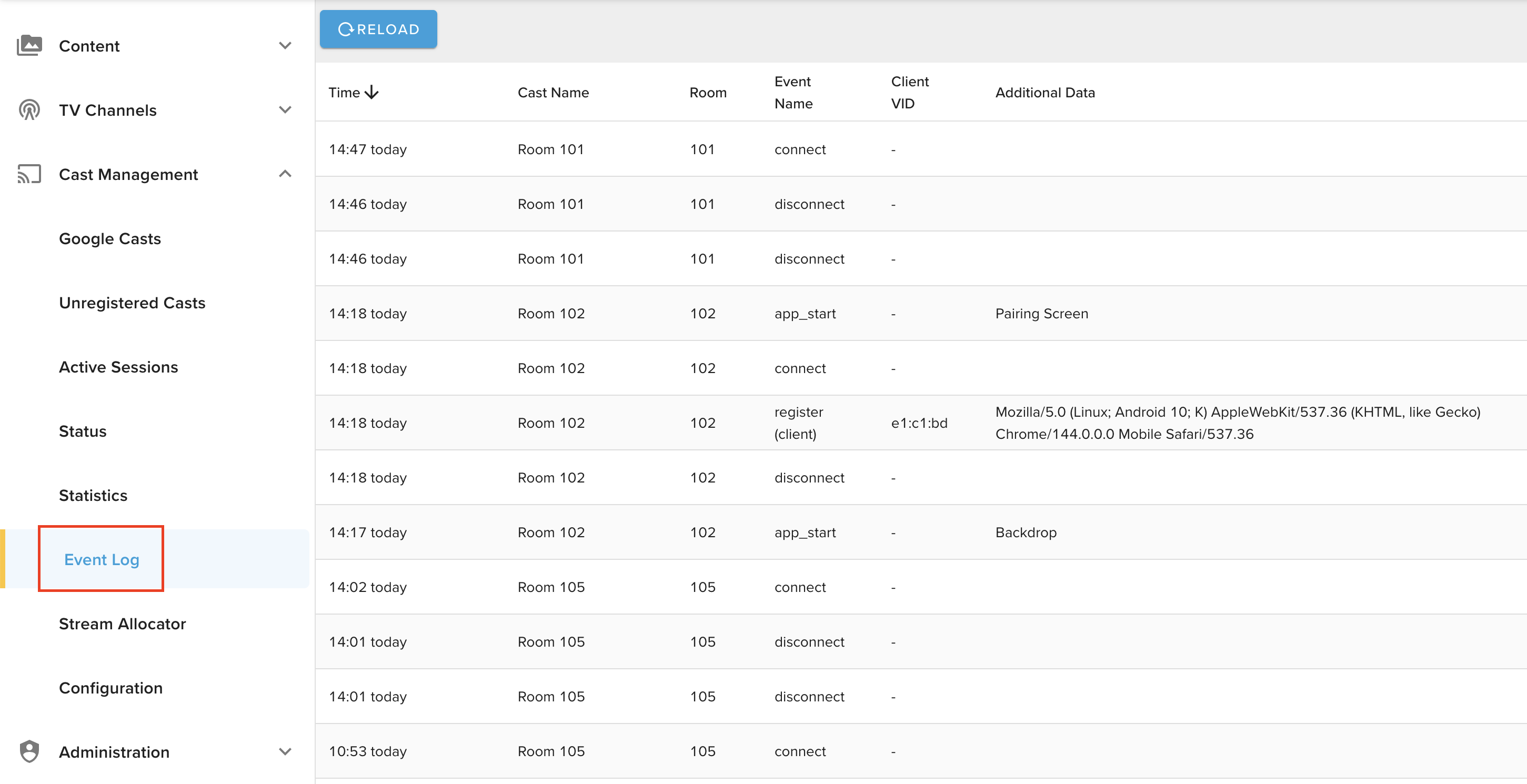
Event log shows the 100 latest events. There are a few different event names here is some of
them explained:
- register: This shows a guest getting paired with a Chromecast. Client VID is the make of the client device.
- unregister: This shows when a guest is no longer paired to a cast device.
- app_start: This is when a Google Cast starts a new app. The app is shown in Additional Data. We automatically start the cast when we see Backdrop or Idle.
- connect: We have an active control channel to the Google Cast, this is an event that triggers that we have this connected. On an unstable network these events might flood the event log.
- disconnect: This is exactly the opposite of connect-event. If we lose connection we log this and try to reconnect automatically.
¶ Managing Google Casts
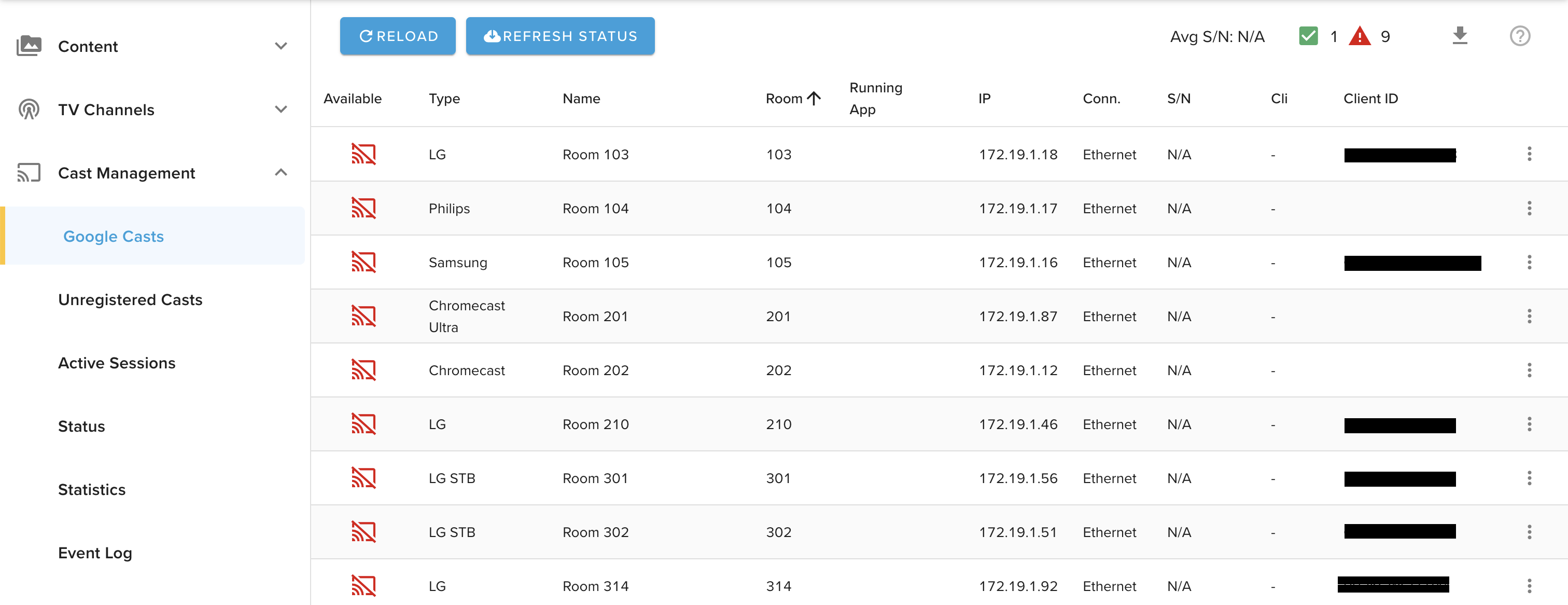
This is the overview over active registered Google Casts. From here you can edit or unregister
(pencil symbol), show QR code (small qr code symbol) or just show information from the
Google Cast (i symbol).
From the top left:
- The Reload button, which is for fetching an updated list from the server.
- The Refresh Status button asks every Google Cast to send new data now. This might take a while depending on how many Google Casts you have.
- The average Wi-Fi signal/noise level (N/A for wired connections).
- Available/Unavailable casts.
Then follow the columns for the Google Casts, some of these are explained here:
- Available: This shows if the Google Cast is reachable for the server or not.
- Type Type of Google Cast device or device of built-in
- Conn: If the Google Cast is on wired or wireless connection.
- S/N: Signal / Noise, here the requirements are -65dBm minimum on signal and at least -18 difference between the signal and noise.
In the above example you see Room 101 has -54dBm difference
and really good signal at -39dBm - Cli: Number of users paired to cast
- Client ID: If using LG or Samsung built-in, this shows TV Client ID (also shown in details of
TV -> TV Screensmenu)
When selecting one or more devices in the list and right-clicking, it will show the context menu:
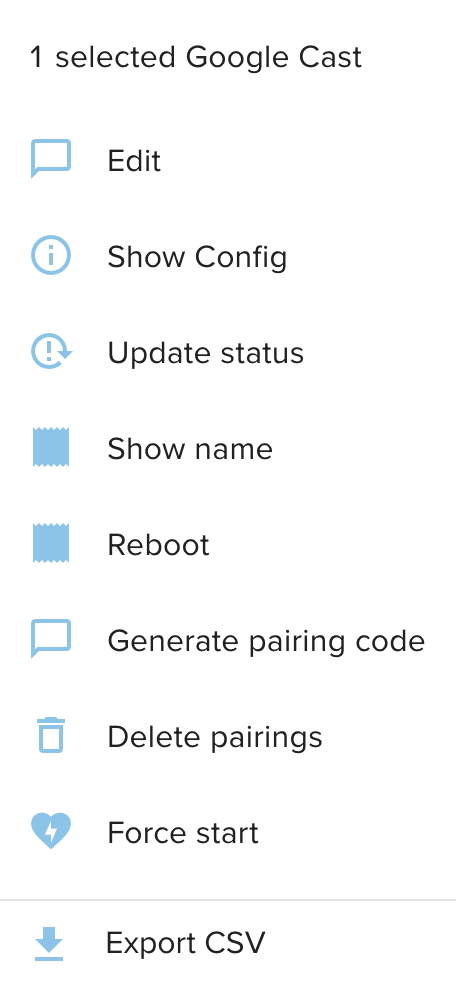
- Edit: Edit the name & room or unregister selected cast.
- Show Config Shows the entire configuration for the selected cast.
- Update Status: Fetches new data for this cast.
- Show name: Shows the name from the portal on the screen in the room.
- Reboot: Reboots selected casts.
- Generate pairing code: Generates a pairing code & QR code for a cast.
- Delete pairings: Removes all current paired guests.
- Stop current session: Stops any running app, should restart cast.
- Force start: Force start the pairing screen to show the QR code on the cast.
- Export selected to CSV: Exports all selected casts to a CSV file.
¶ Set custom device name
¶ Requirements
- Proxy server minimum version 4.1.5
¶ Instructions
You can now edit the name of the Google Cast device that will show up for users. This is usful for multiple reasons, but mainly if you:
- Want a specific customized cast name for a room
- Have a single room with multiple LG and/or Samsung embedded Google Cast-enabled TVs
For example, you may have Room 101 and in that room are 2 TVs labeled 101A and 101B. With LG/Samsung embedded casting, the rooms that are assigned to those TVs have to be exactly mapped to the specific room number to help prevent any cross-traffic of pairing between rooms.
With this feature, you can specify what name shows up for the end user even though you need to map the room precisely.
Google Cast management page showing registered TVs. Presuming the Global Google Cast Name set is Room, without enabling "Set as device name" these TVs will both show up paired user devices as "Room 101":
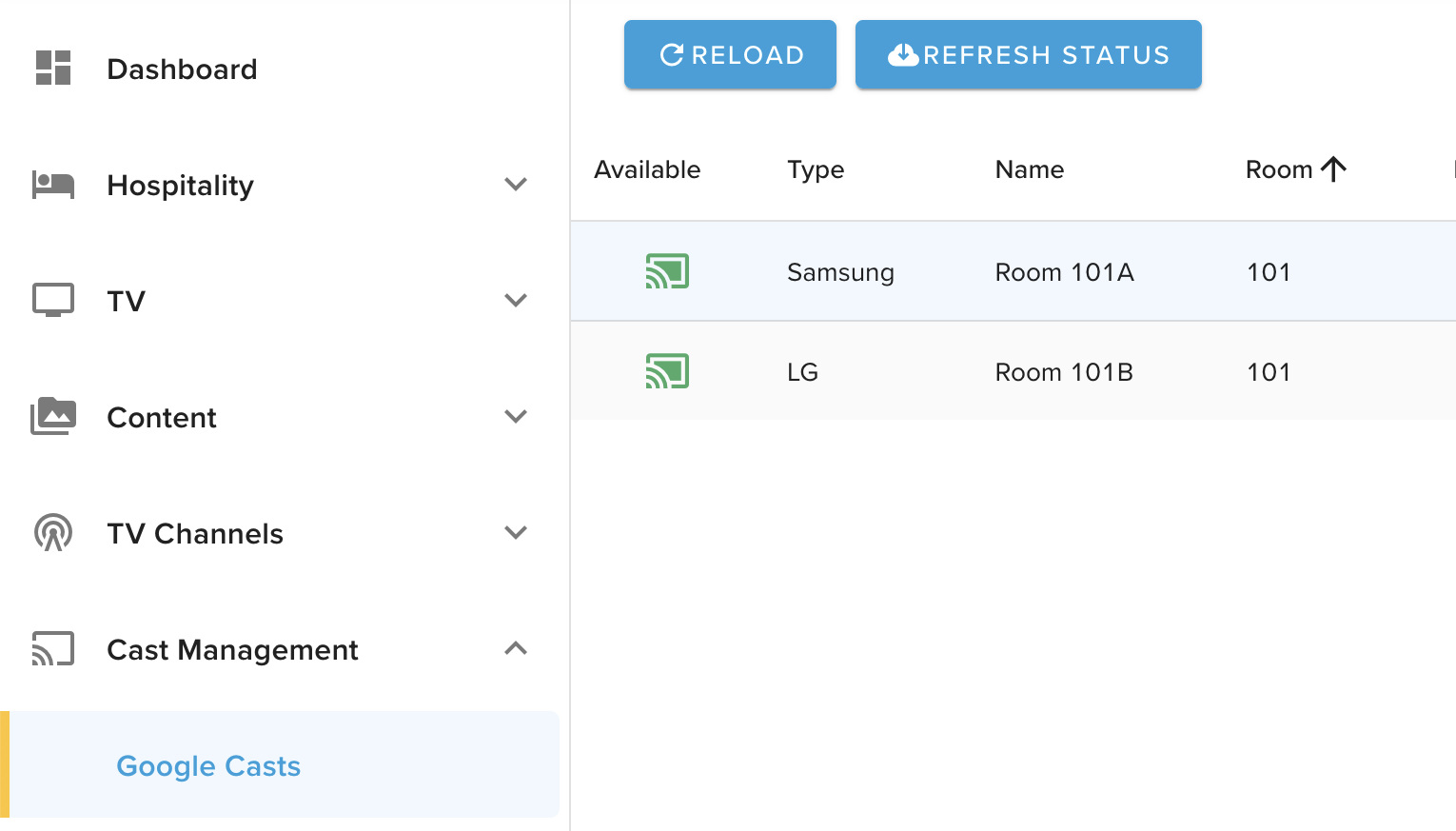
We can toggle this setting on by going to specific Google Cast, clicking the 3 dots, then Edit and then saving the desired changes.
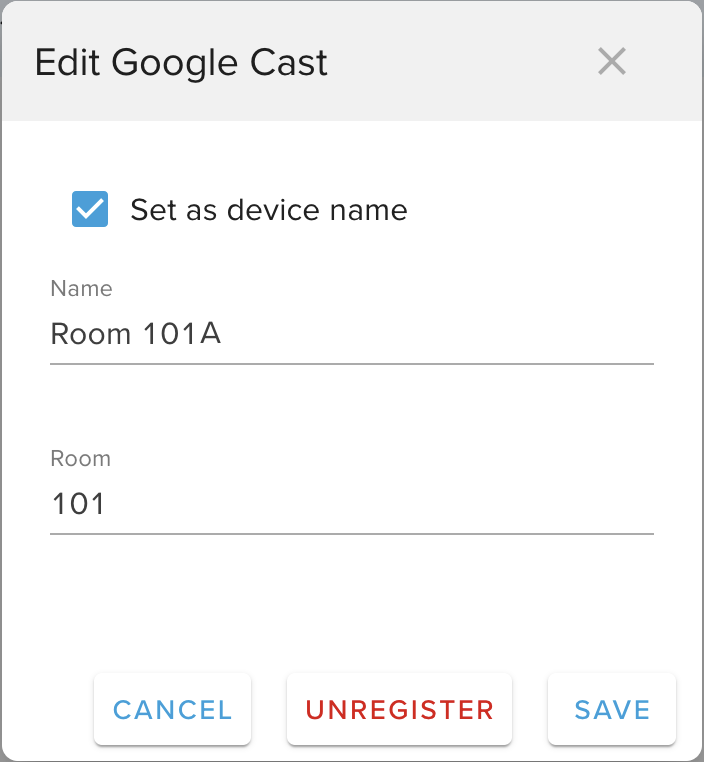
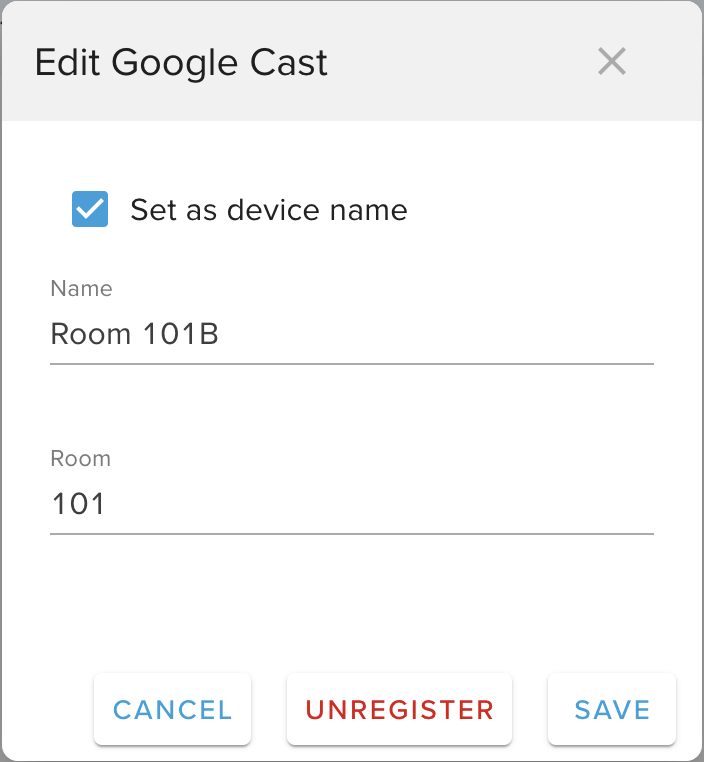
Once the Google Casts have had enough time to change their names (approximately 1-2 minutes), any paired users will then see the new Google Cast name upon attempting to cast from a cast-enabled app.
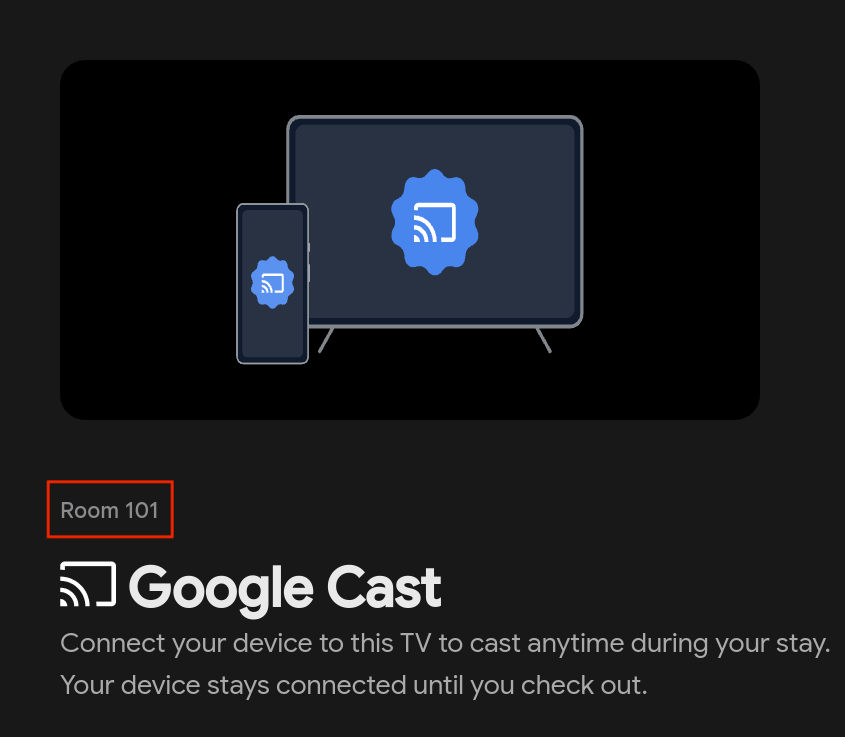
Note: Room number will not be altered at initial Google Cast pairing screen, as it isn't showing the cast name but the specified room number:
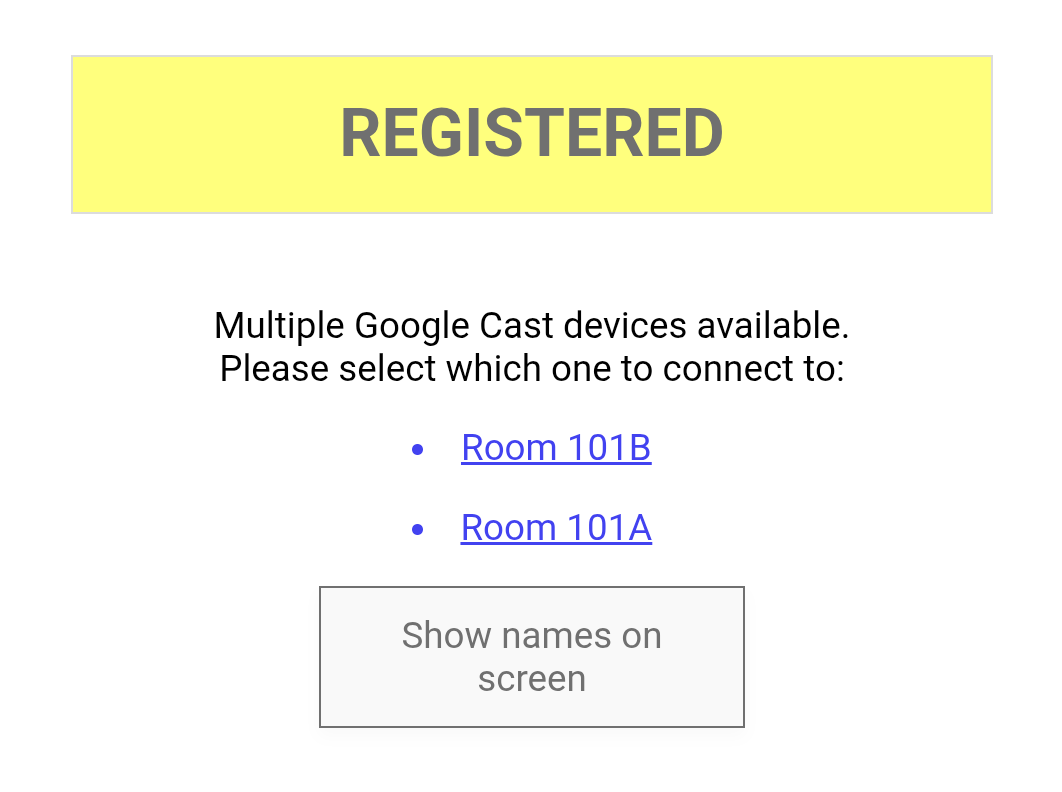
User can select between different casts of the same room:
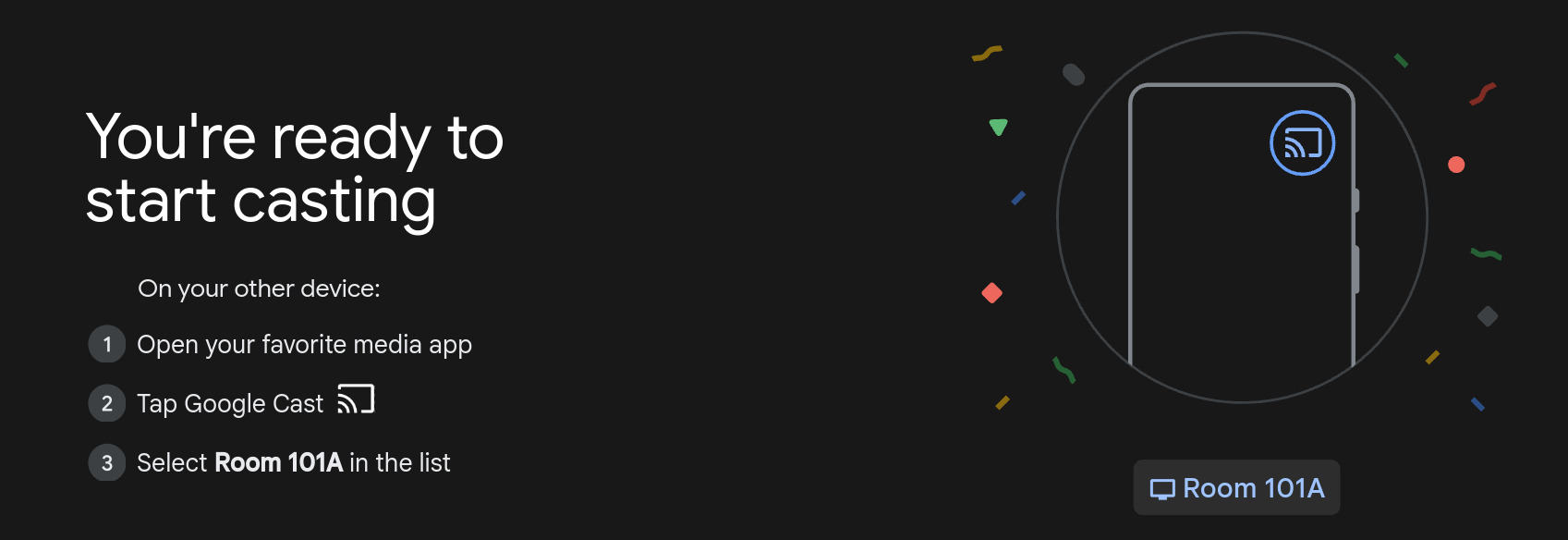
If user selects Room 101A, they will get this pairing success page:
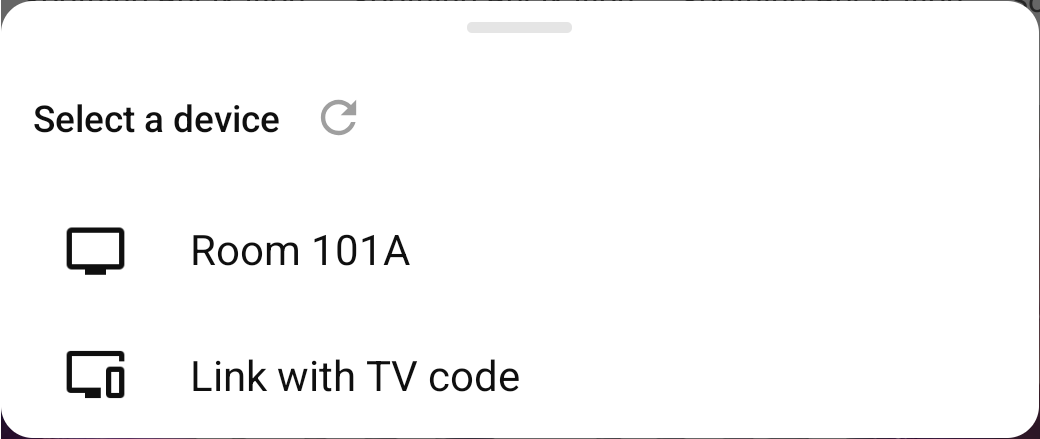
They will see that name when they go to cast - example from YouTube:
¶ Unregistered Casts
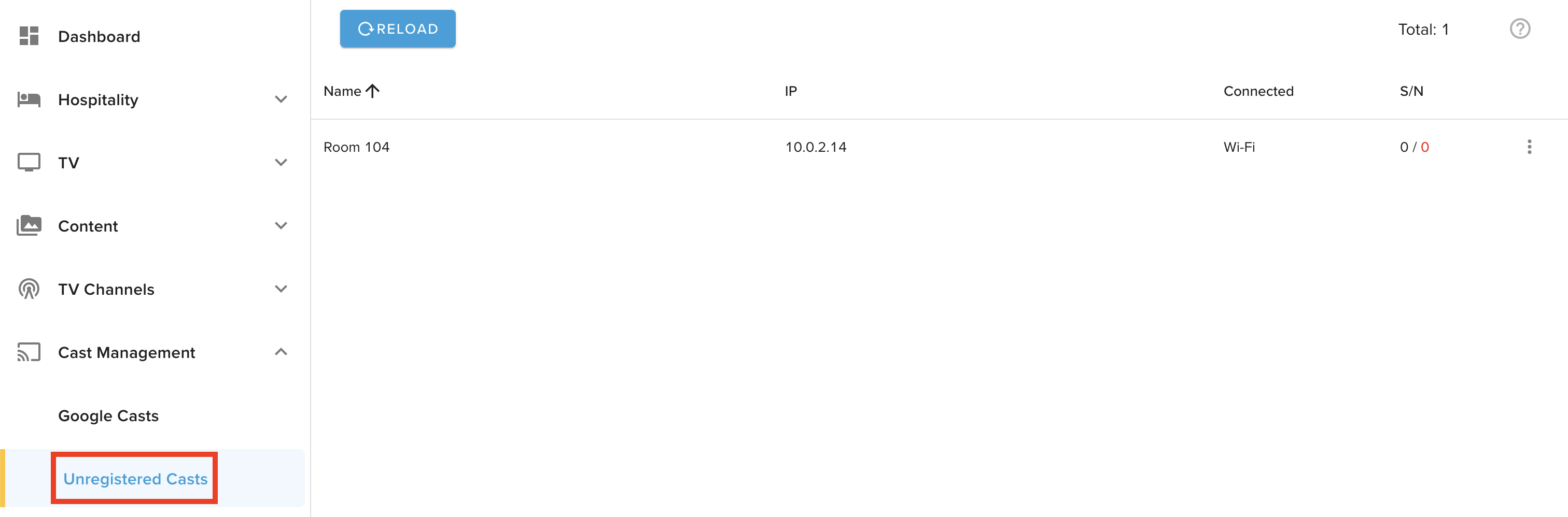
This page shows all discovered Google Casts. From here you can either delete them, which will remove them until they send out a new mDNS announcement, or register them to a room. This list will automatically be filled when as mentioned above we receive mDNS announcements from the Google Cast. The list must be manually reloaded to fetch the newest data.
Registration is as easy as editing it and entering a name & room number (see example below), and hit Register.
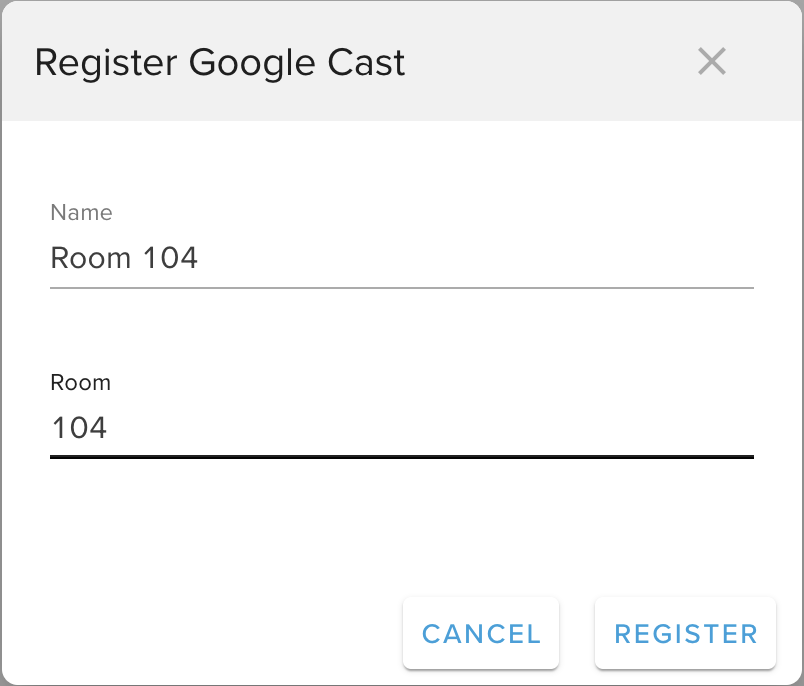
Note: The Chromecast will not disappear from the list until it has
been reloaded. This might change in the future. The same goes for
when you unregister Chromecasts.