¶ Samsung embedded Google Cast setup guide
¶ Requirements
- Supported Samsung TV model
- TV device network isolation
- Supported firmware
- Proxy Server v4.1.3 or later
- Basic network settings on
Cast Management -> Configuration -> Advanced Networking - Requirements for YouTube
- API token set on
Administration -> Google Cast Configuration -> LG/Samsung Embedded Casting
¶ TV device network isolation
TV devices will need to be isolated and unable to communicate with each other on the network,
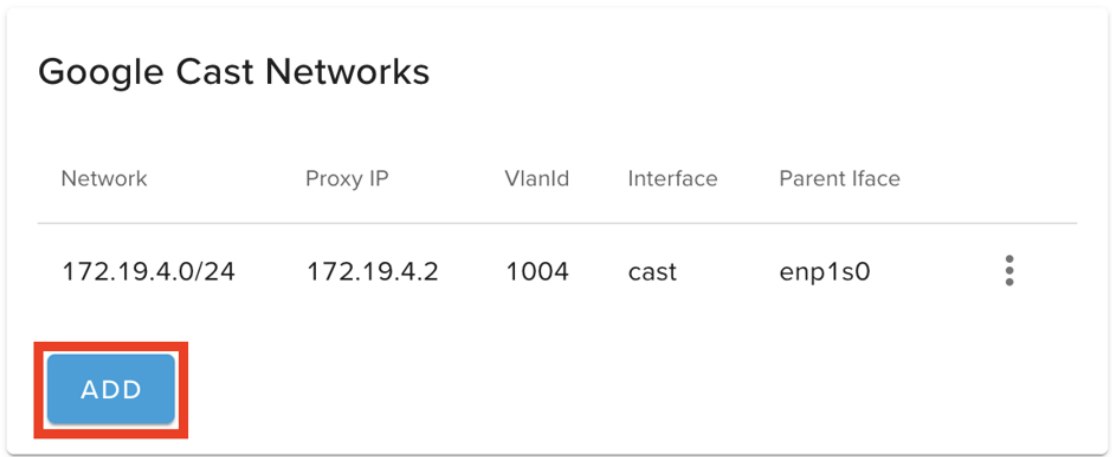
with the exception of the cast network proxy IP (configured from Cast Management -> Configuration -> Networks -> Google Cast Networks ).
These network configurations are required by Google to maintain security and guest privacy.
Failure to comply with these requirements may result in Google Cast being disabled in your site.
¶ Supported Samsung TV models:
Europe
| See Issues section | ||
| See Issues section | ||
| See Issues section |
North-America
| See Issues section | ||
| See Issues section | ||
| See Issues section |
Asia-Pacific
| See Issues section | ||
| See Issues section | ||
| See Issues section |
¶ Samsung TV firmware
The TV firmware must meet or exceed the minimum version specified in the supported TV models table above. This can be checked from the Hub management portal by clicking TV -> TV Screens and viewing the firmware version.
¶ Proxy Server v4.1.3 or later
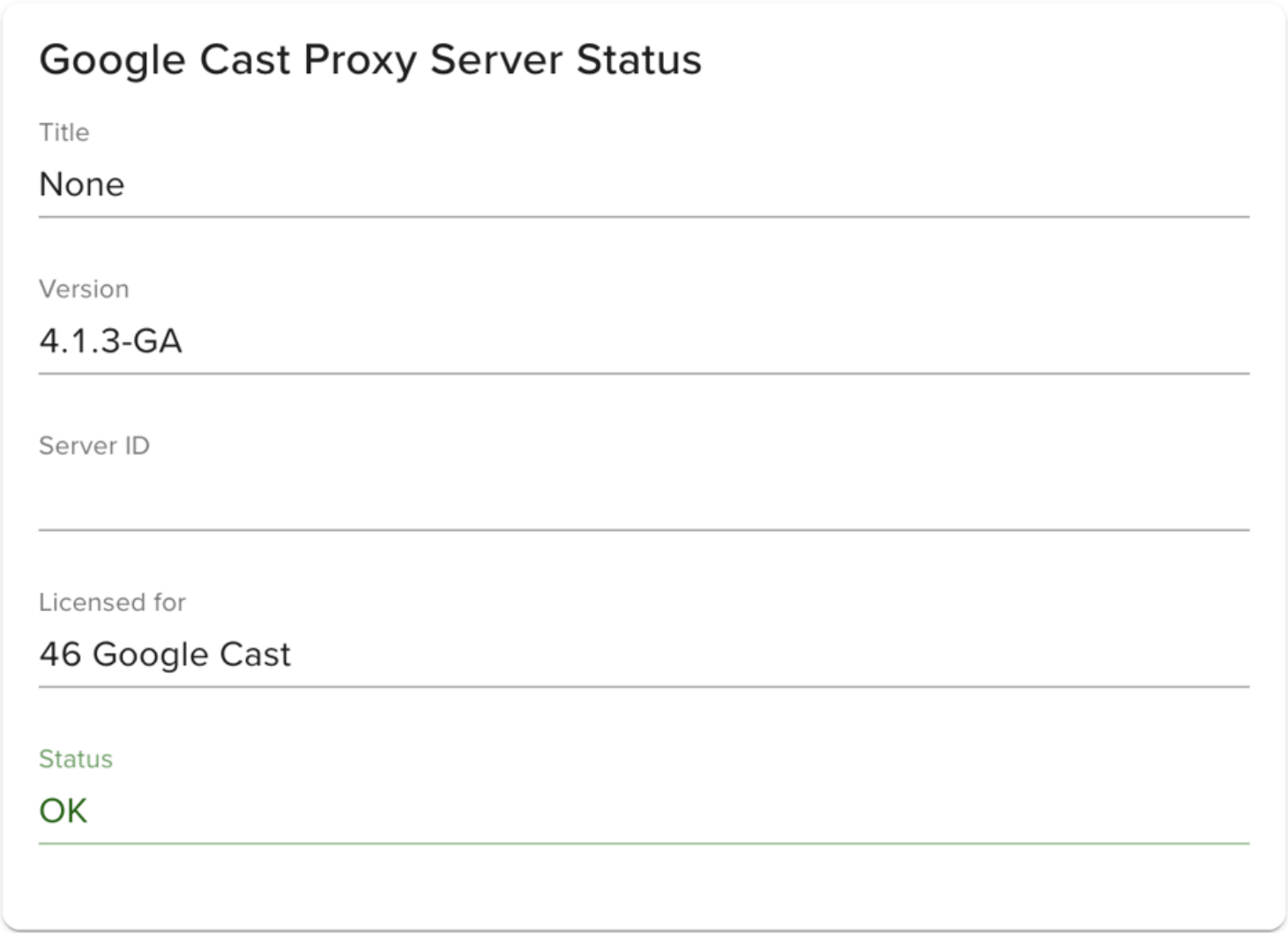
To use Samsung embedded Google Cast, you’ll need to be on version 4.1.3 or later of the
proxy server. Check the Proxy Server version from Hub management portal by going to
Cast Management -> Status and on that page, you can view your version:
¶ Basic network settings
You’ll need to have 3 options switched off on the Advanced Networking configuration page of
Cast Management
- Go to
Cast Management -> Configuration -> Advanced Networking - Confirm your settings look like this
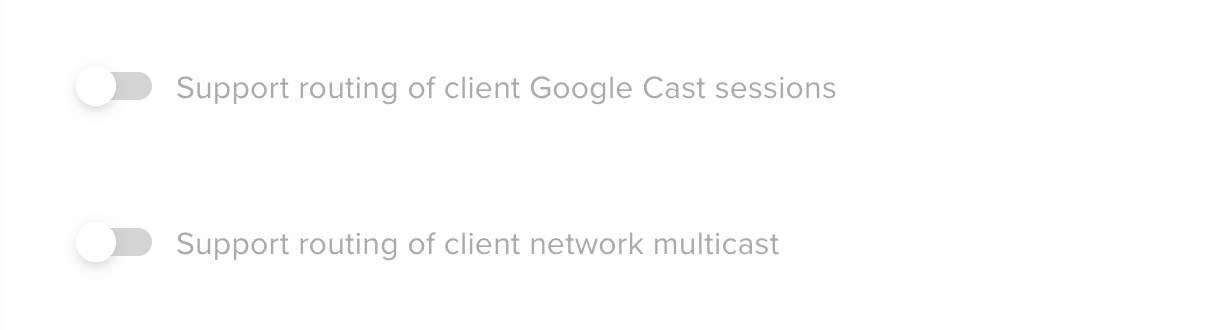
If your site has any of these options switched on, we don’t support using Samsung embedded
casting for your network configuration.
¶ Requirements for YouTube
In order for YouTube to work with Google Cast, you must enable SSDP on your cast and guest networks. If you do not wish to do this, the native YouTube app on the TV can be used, but Google Cast will not work for YouTube because it relies on SSDP for device discovery.
¶ API token set
You must have the API token set for your site in the section Administration -> Google Cast Configuration -> LG/Samsung Embedded Casting.
How to do this is provided in the section below.
¶ Setting API access token for LG or Samsung embedded casting
On the left panel in Hub portal, go to Administration then click Users & Access
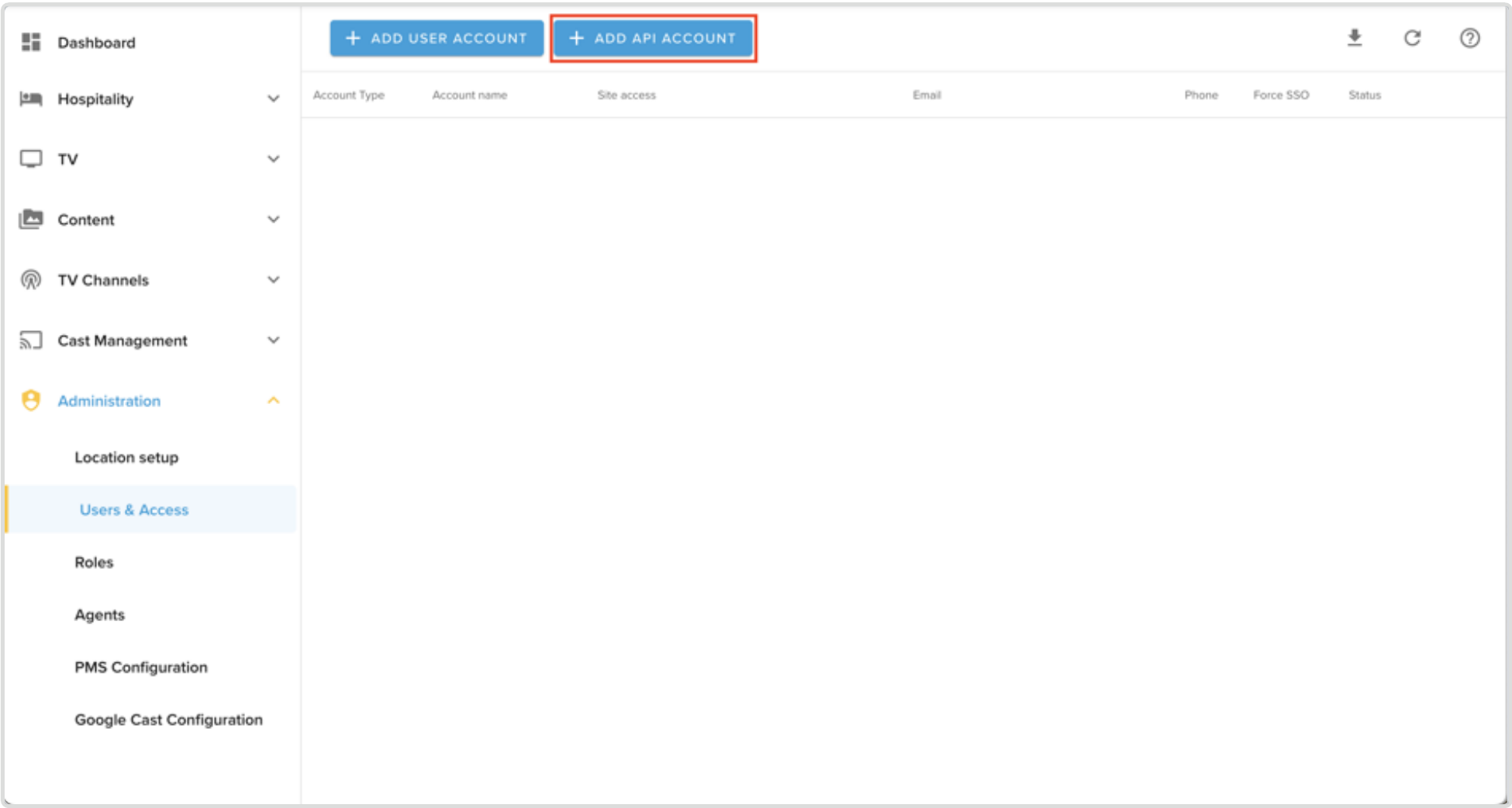
Click “Add API Account”
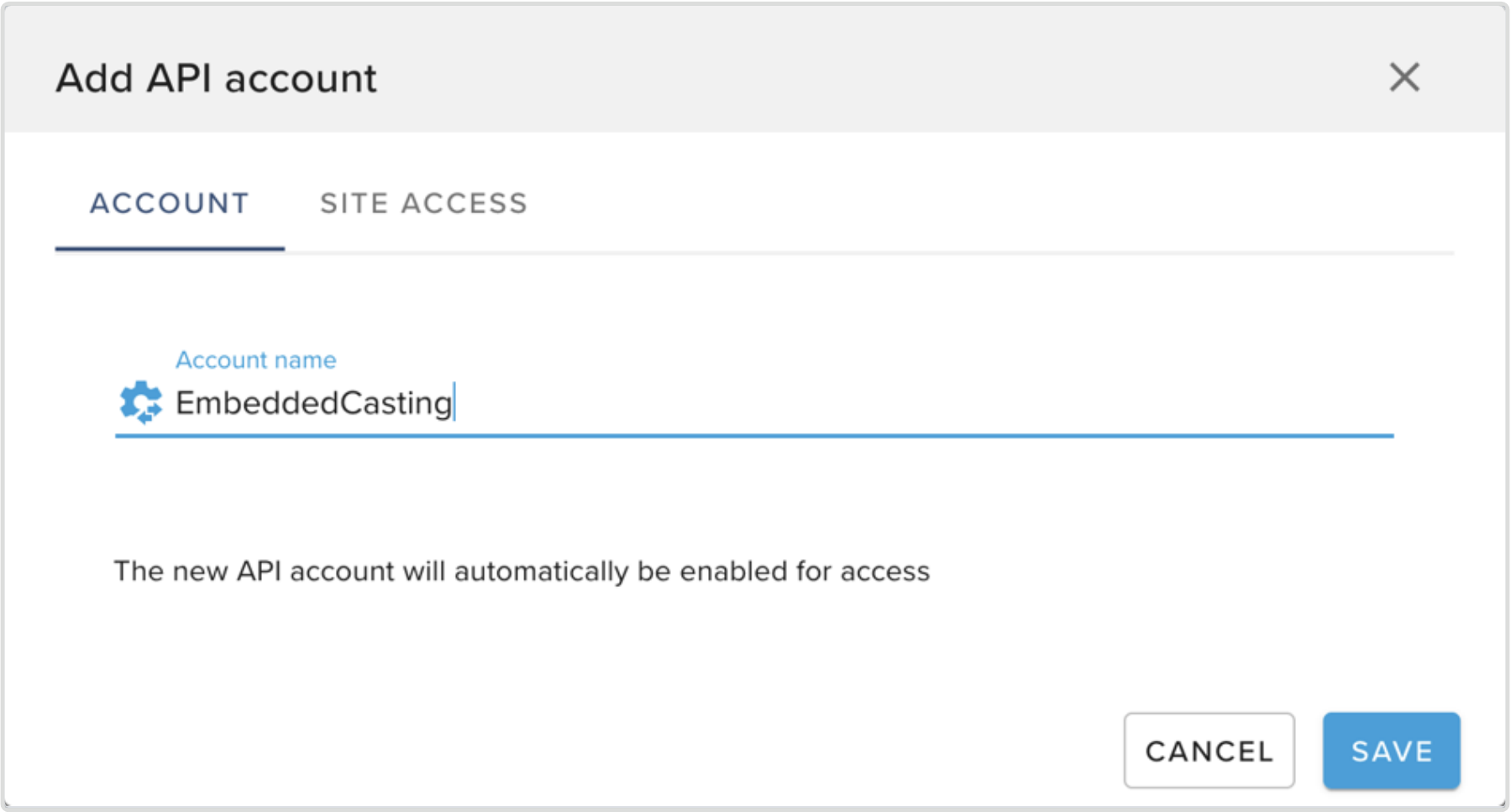
Name your API account token then click “Site Access”
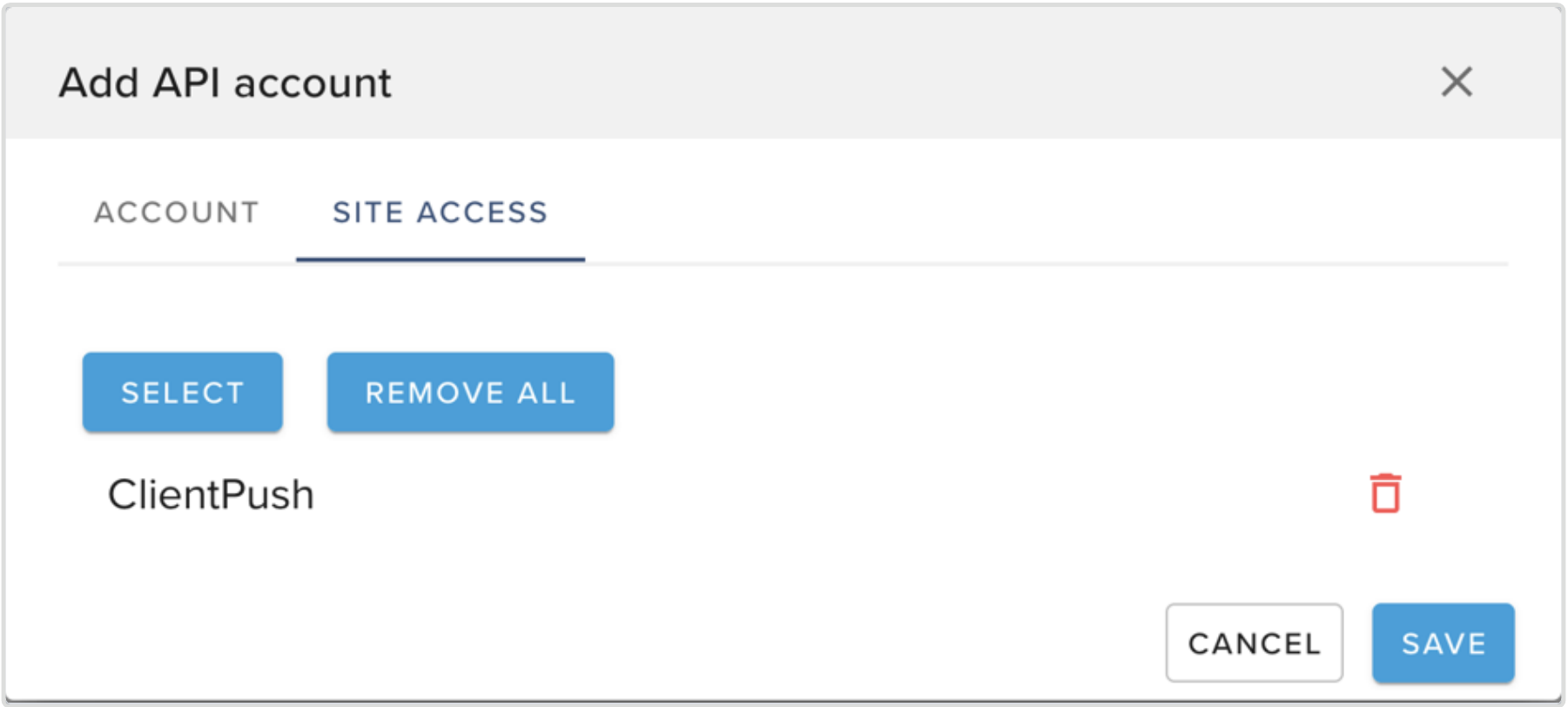
Click “Select”, give your API account access to ClientPush, then Save
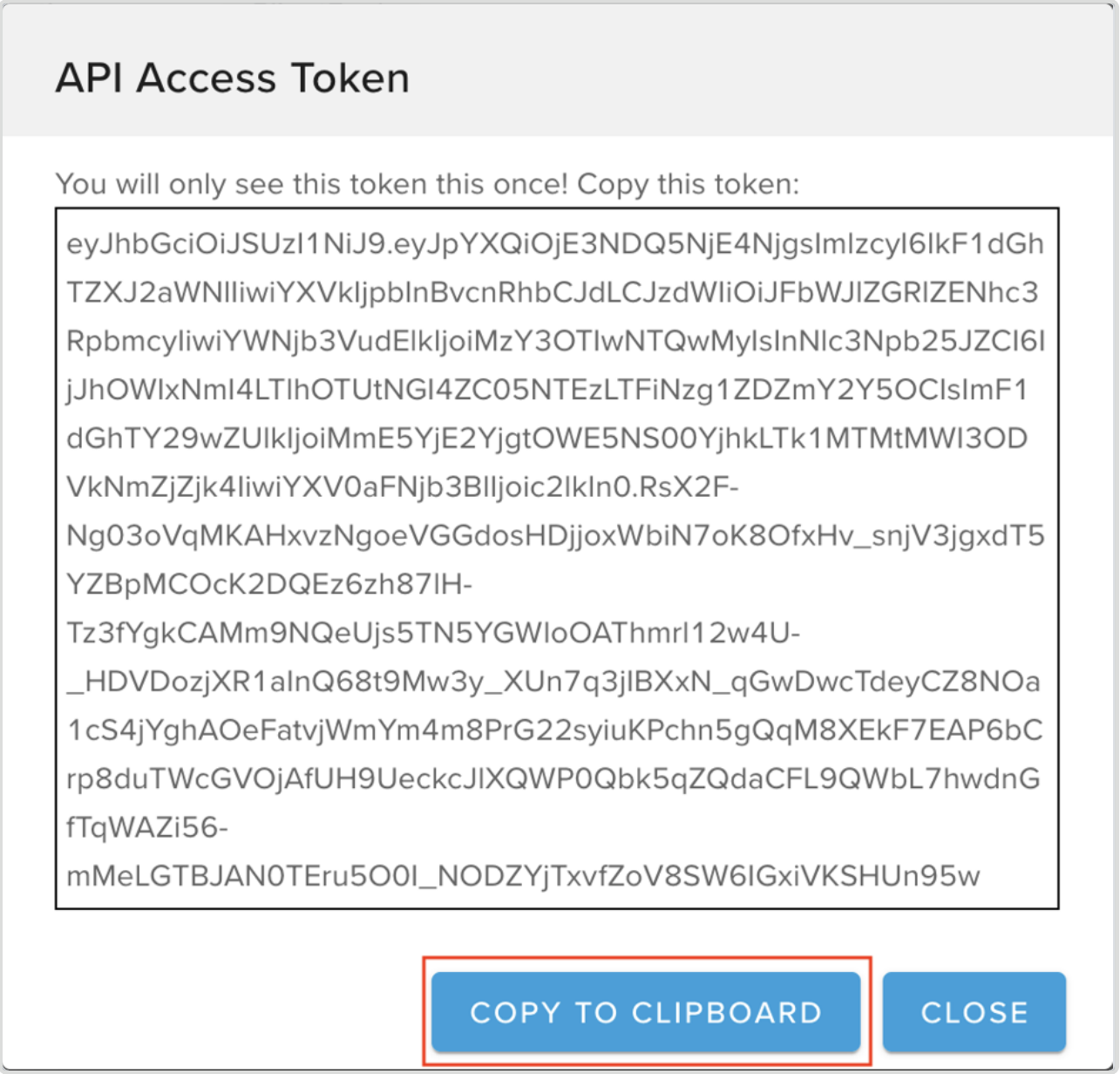
Copy your newly created API Access Token and close the popup
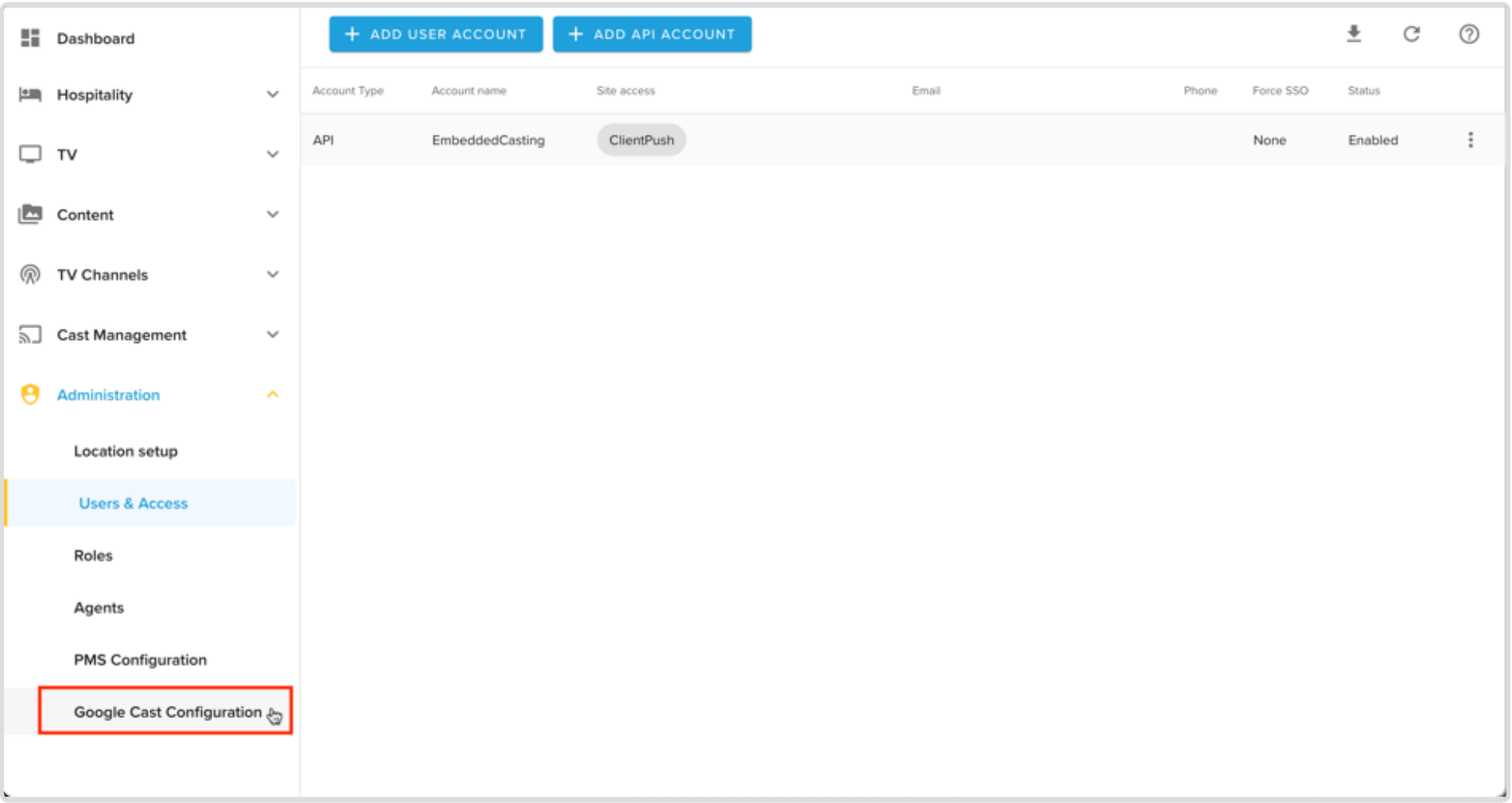
Click “Google Cast Configuration” on the left-side panel

Paste your token in the “API Access Token” input, then click “Save”
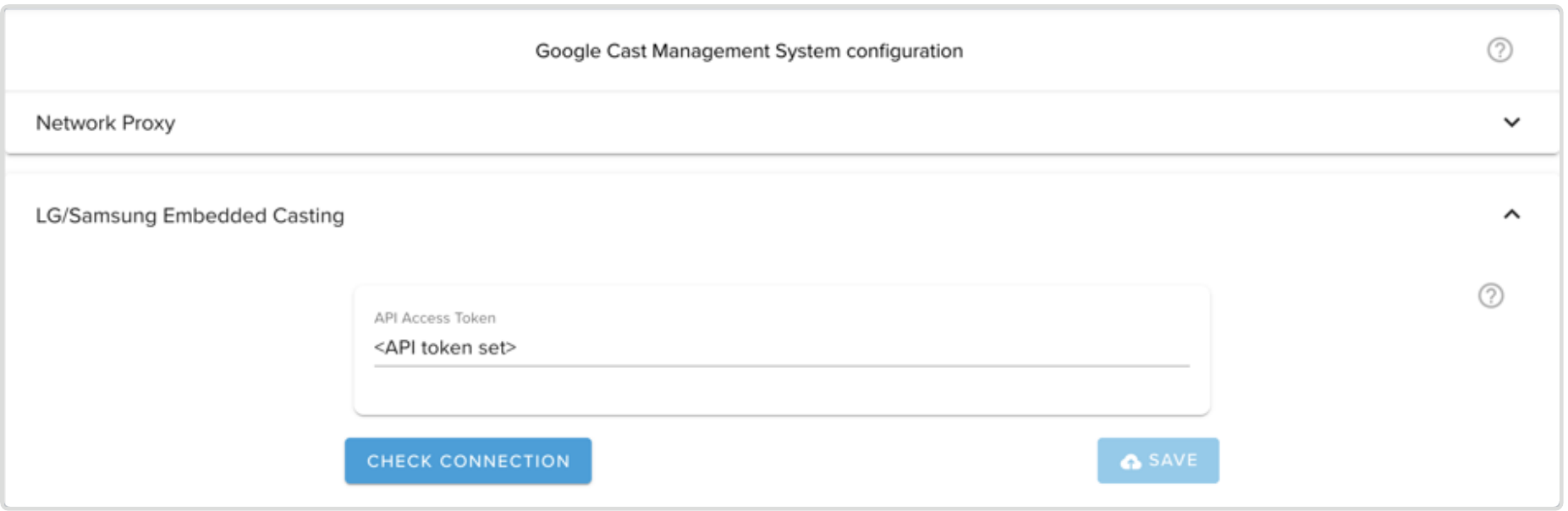
Click “Check Connection” to confirm successful token setup
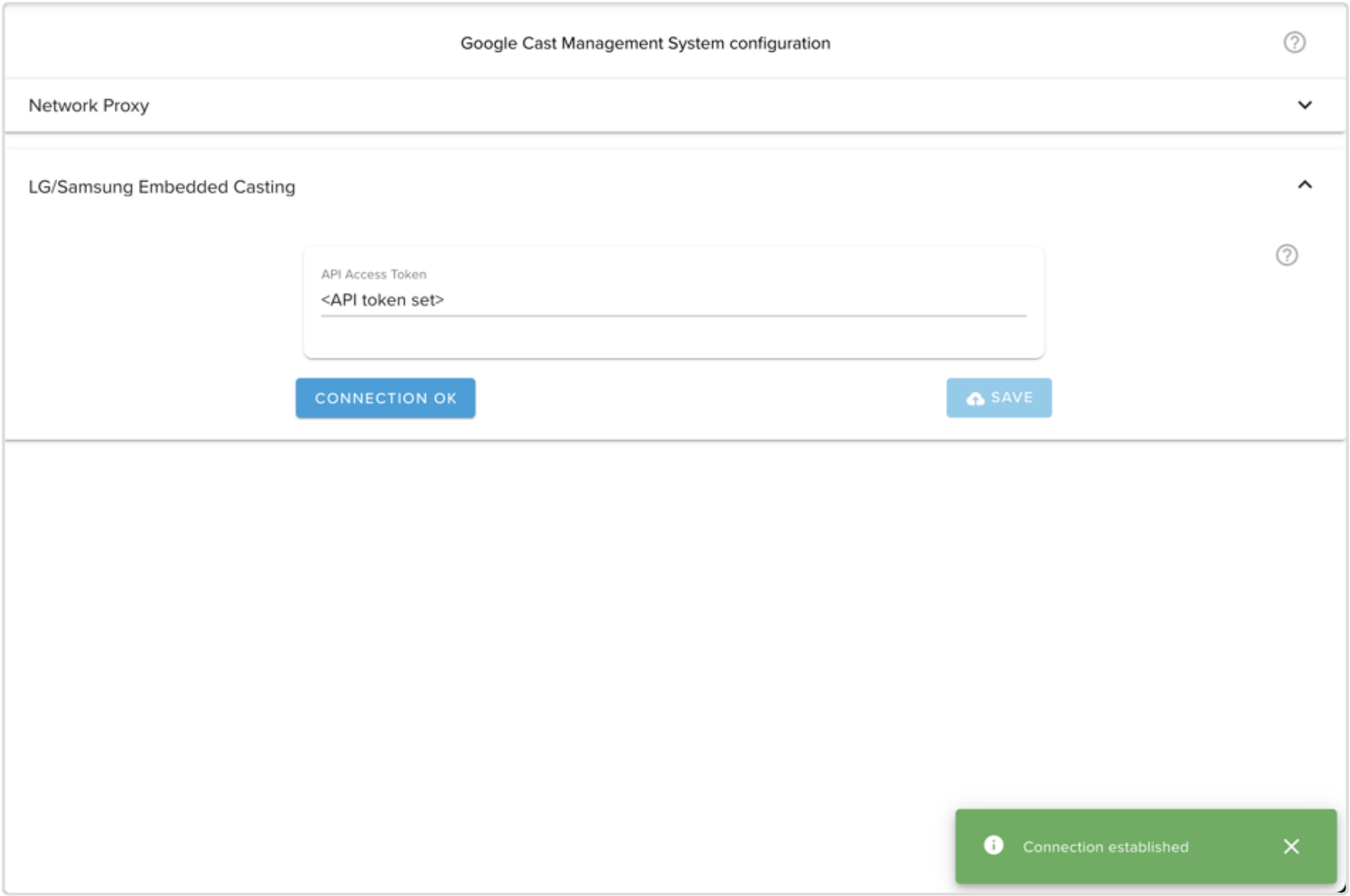
Token is shown as successful with “Connection OK” button and “Connection established” message
¶ Conversion from HDMI dongle to embedded casting
If you already have Google Casting setup with an HDMI Chromecast dongle, you’ll need to
unregister that cast for the room from the “Google Casts” section in Hub management portal:
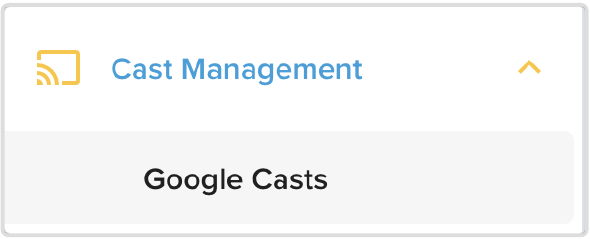
Click “Google Casts”

Click the three vertical dots, then click “Edit”
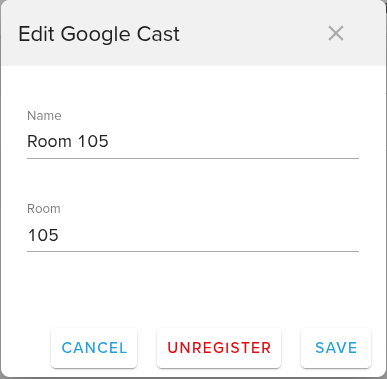
Click “Unregister”
¶ Checking the network of your TV
If the TV is not connected to the Cast Network, you will need to do so. To check if your TV is
connected on your Cast Network, you can view your cast network IP(s) from Cast
Management -> Configuration -> Networks -> Google Cast Networks :
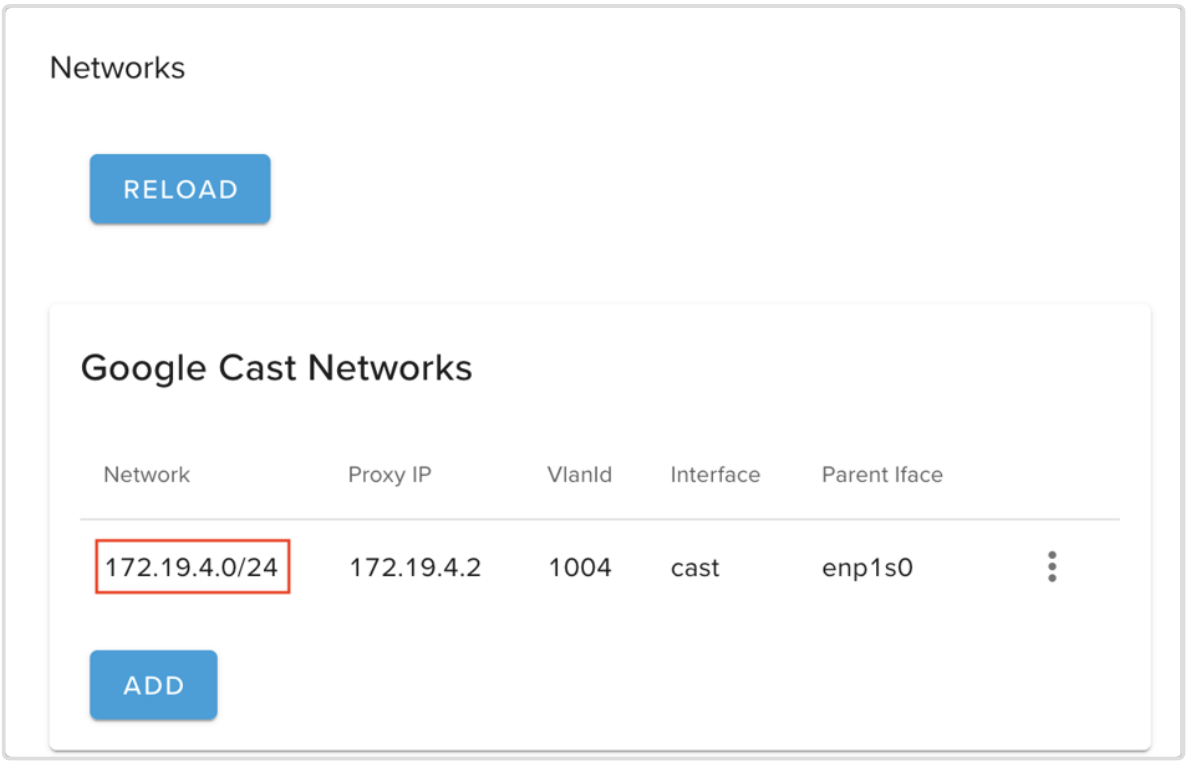
IP address of cast network
You can then view your TV network from the TV -> TV Screens menu:

In this example, IP address confirms TV to be on the cast network
If your TV is not connected to a cast network, you have two options:
- Option 1: You can change the network settings on your TV and connect to a Google Cast Network
- Option 2: You can add your TV’s network information to your list of Google Cast Networks, shown in Cast Management -> Configuration -> Networks . You will need to assure your TV network is visible to your cast proxy server; proper network configuration is beyond the scope of this guide.
¶ Registering the embedded cast
If your TV is connected to a cast network, your embedded cast should show in Hub
management portal. Register this cast by going to Cast Management -> Unregistered Casts :
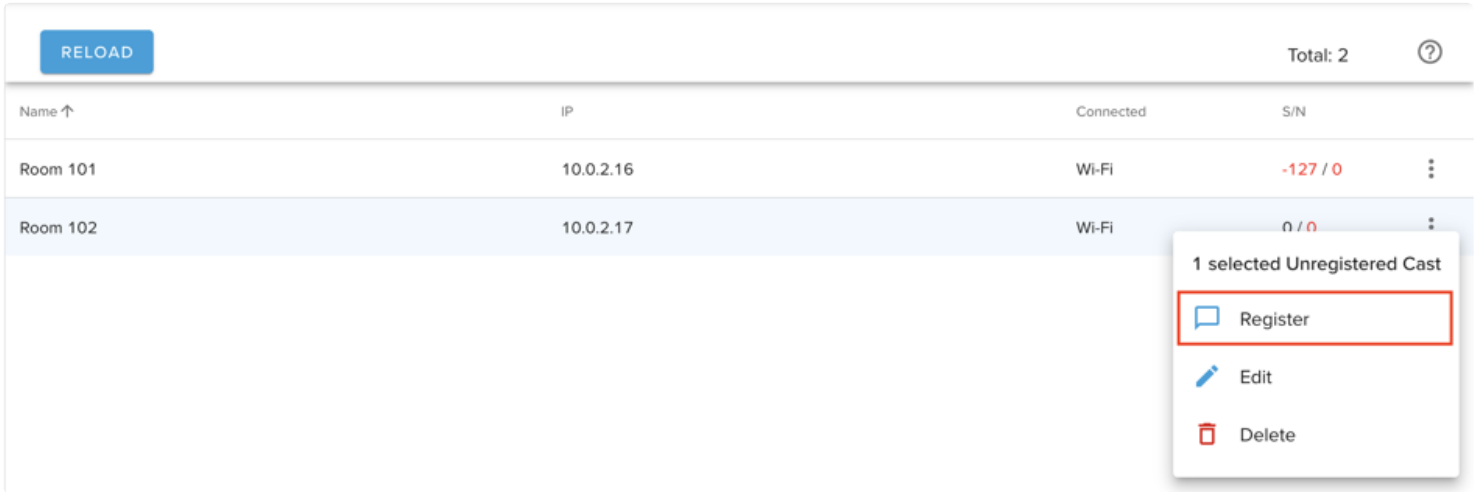
Click the three vertical dots, then click Register.

Enter the correct room number and click Register.
After first Registration, a reboot of the TV is required
You can now use Samsung embedded Google Cast for this TV screen!
¶ Adding cast to a TV menu
Add an item that the user should select to initiate casting. Set the action "Start chromecast Pairing" on this item:
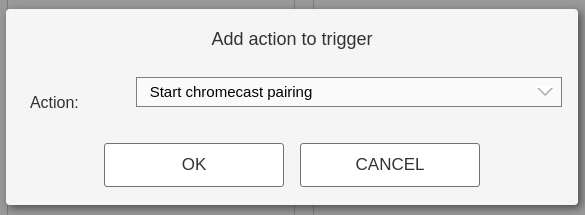
This will cause the cast app to start and display the pairing instructions.
¶ Issues
¶ HBU8000
Firmware version 1715.1 fixes:
- Excessive mDNS announcements sent upon TV power state change
¶ YouTube
There’s a bug present in firmware previous to 1710.0 where cloning fails to properly copy the
YouTube native app
¶ Netflix
Netflix does not support using built-in Google Cast.
¶ iPhone or iPad
- On your iOS device’s home screen (iOS 14 or later), tap Settings.
- Tap Privacy & Security Local Network. You’ll find a list of apps.
- Turn on Local Network for the app(s) you would like to allow access to your network.
This will allow permissions for your device to discover Cast-enabled devices.