¶ Description
Variables are values that can be changed, depending on the conditions or information passed. In Hub, variables are editable key/value pairs that can be passed to Dynamic Playlists or Templates to affect the content that appears on a signage screen.
Use of variables is currently restricted to Digital Signage deployments only.
Variables are created and managed under the Administration > Variables module. Access to this module is limited to Site Admin users.
¶ Types of Variables
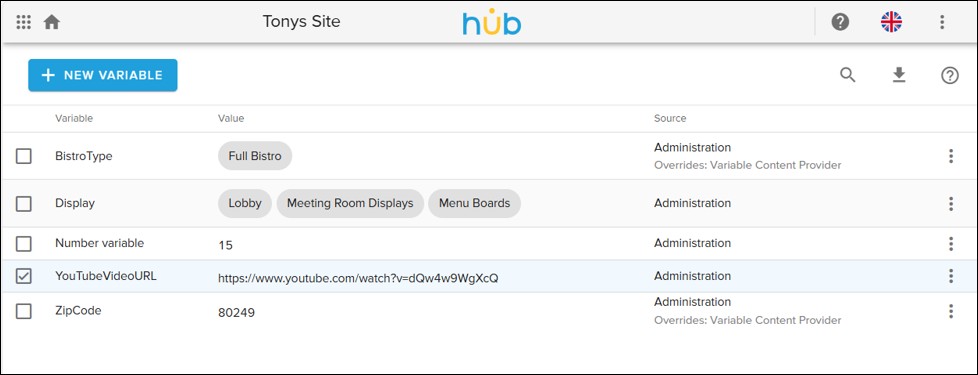
In the current state, three types of variables may be created:
- Text :: a default text value inherited by all references to the variable
- Number :: a default numeric value inherited by all references to the variable
- Content Tags :: a list of predefined values that may be assigned to sites, signage endpoints, and content in a Dynamic Playlist
¶ Creating New Variables
To create a new variable, access the Administration > Variables module on the lefthand side of Hub.
- Choose the blue New Variable button along the top header.
- Enter the a unique name, without spaces, for your variable.
- Select Text, Number, or Content Tags from the Type dropdown menu.
- If using Text or Number type, enter the desired default value.
- If using a Content Tag type variable, enter the desired Content Tag values in the field that appears below the dropdown.
- Use the tab or enter keys to submit each content tag value and add another.
- Click on the X icon to delete a content tag.
- When satisfied with your changes, press Save to commit them.
¶ Editing Variables
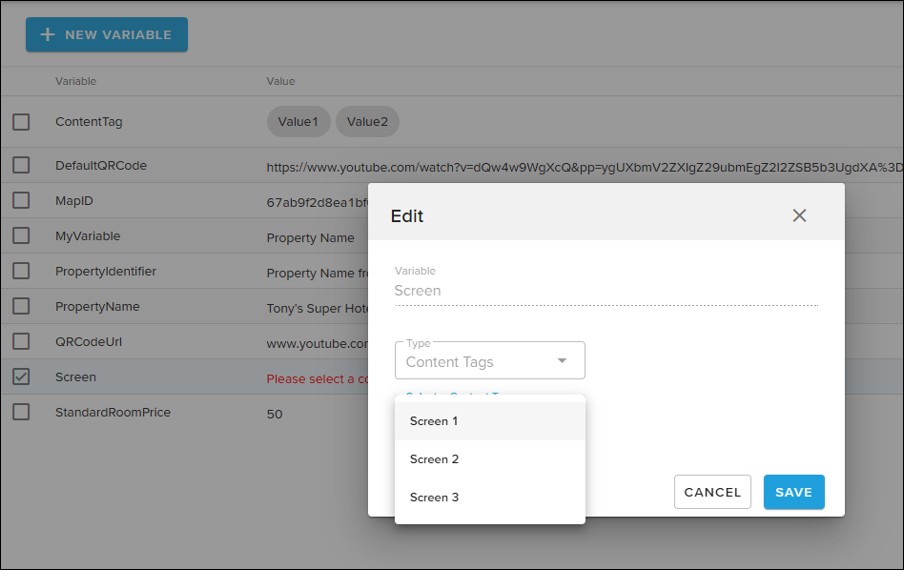
To create a variable, from the the Administration > Variables module, right-click the desired variable and choose “Edit” from the menu that appears.
From here, you may alter the variable value of Text or Number type variables as well as add or remove selectable values for Content Tag type variables.
The name of the Variable may not be changed after it is created. If you would prefer to change the name, instead right-click the desired variable and choose “Delete." Then, create a new variable with the preferred name.
¶ Variable Hierarchy
Variables may be set at 3 different levels within Hub, in the below hierarchy. Variables set at a higher level are inherited by the connected levels below. The values may also be overwritten by lower levels to enable a more custom outcome.
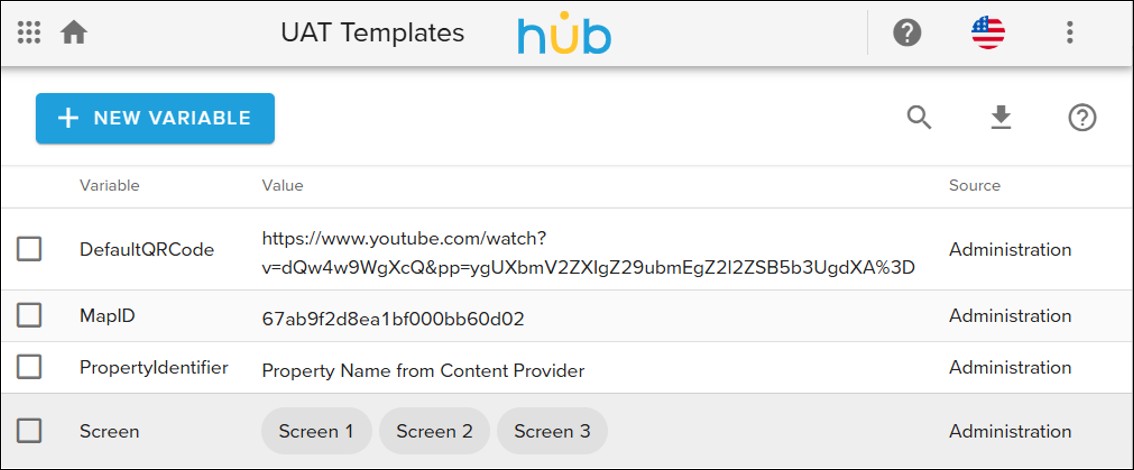
- Content Provider :: Set variables here so that they may be inherited by all connected sites. Define a default value.
- Site Administration :: Set variables that can be applied to all devices. Alternatively, overwrite variables inherited from the content provider.
- Signage Screen :: Set variables that only apply to a particular endpoint. No other site details or other devices are impacted.
- Site Administration :: Set variables that can be applied to all devices. Alternatively, overwrite variables inherited from the content provider.

View of Variables in a Content Provider
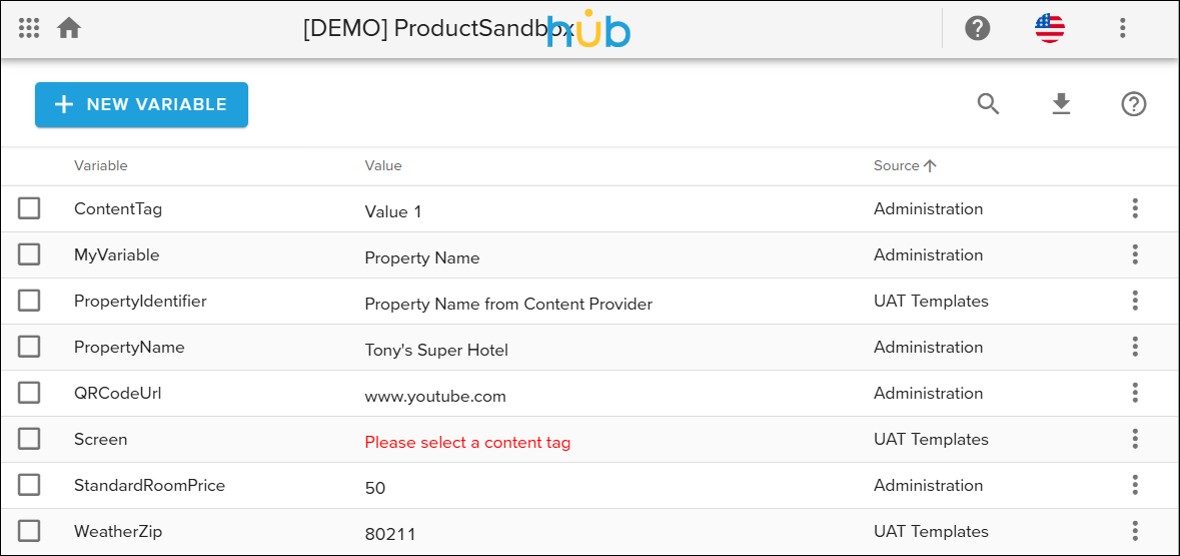
¶ View of Variables in a Site Administration Module
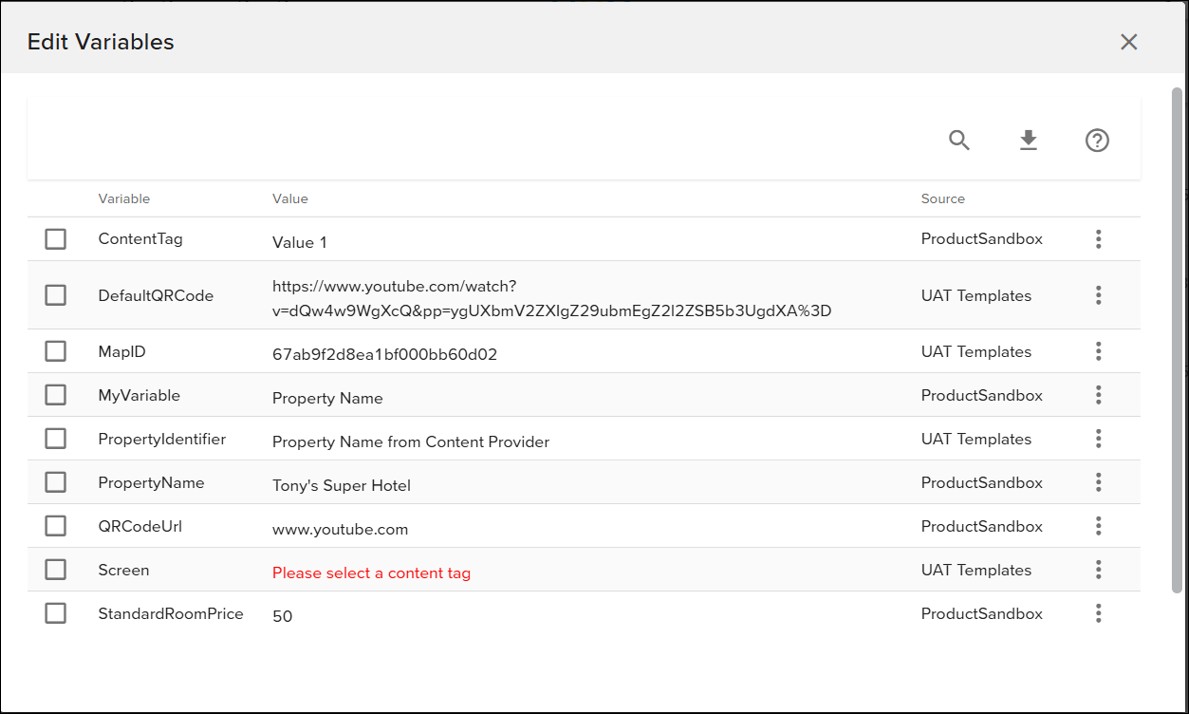
¶ View of Variables on a Signage Screen

Overriding Variable Values
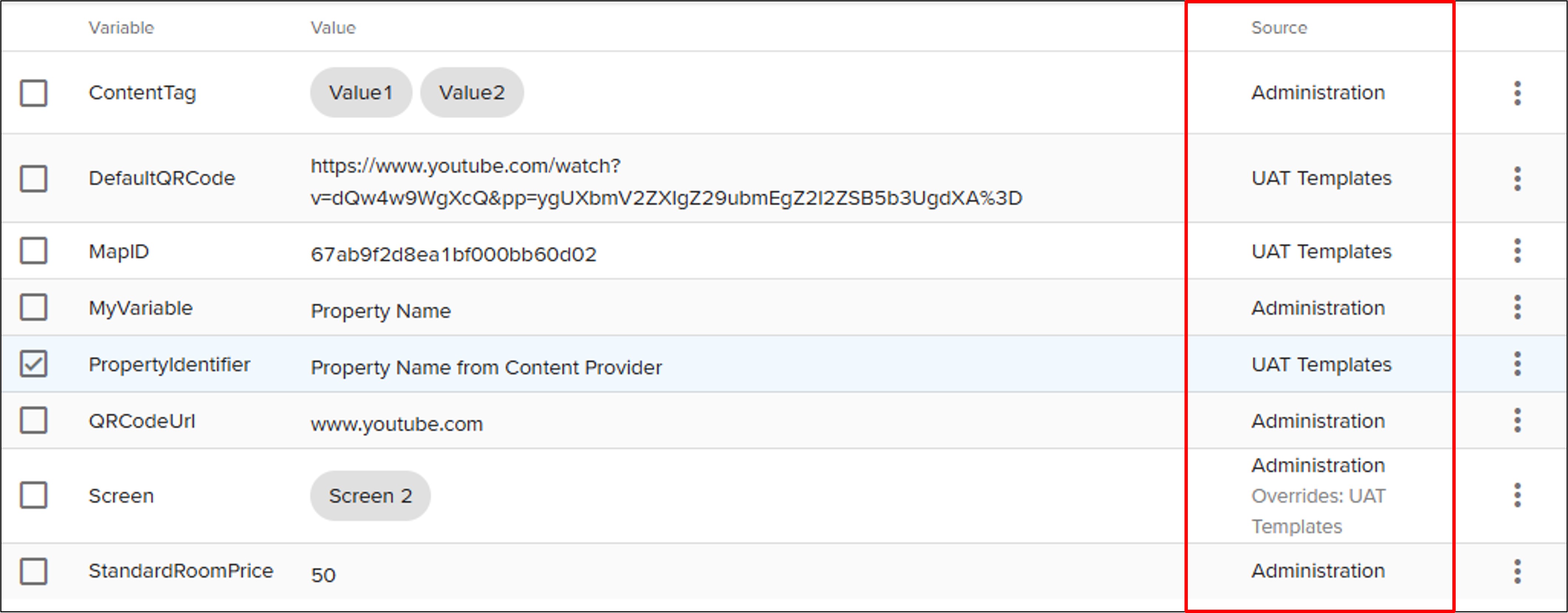
Variables may be overwritten at either the site or device level. Notice the Source column in the variables list. When the source is Administration, that means the variable has been set in either the Content Provider or Site-level Administration module.
When the source shows something else, it will show the level the variable is being overwritten from as well as what it is overriding.
To override a variable value inherited by a higher level:
- Right-click the desired variable and choose “Edit.”
- To customize the value, double-click the variable and enter a new unique value.
- Press Save to commit the changes and note the new source.

Applying Variables to Widgets
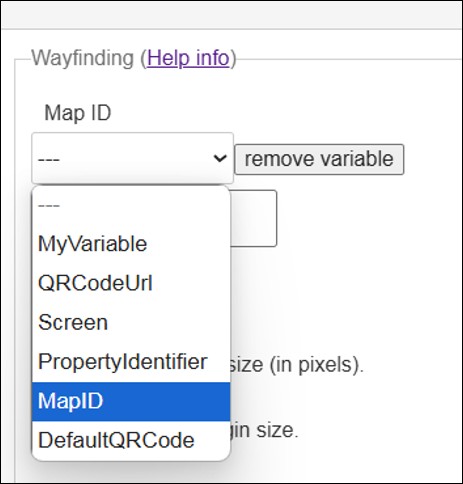
Select Widgets now support the selection of a variable value as a substitute for a static, manually entered value.
Supported widgets include:
- Text Box
- QR Code
- Container
- Wayfinding Map
Look for the “select variable” button in supported widgets.

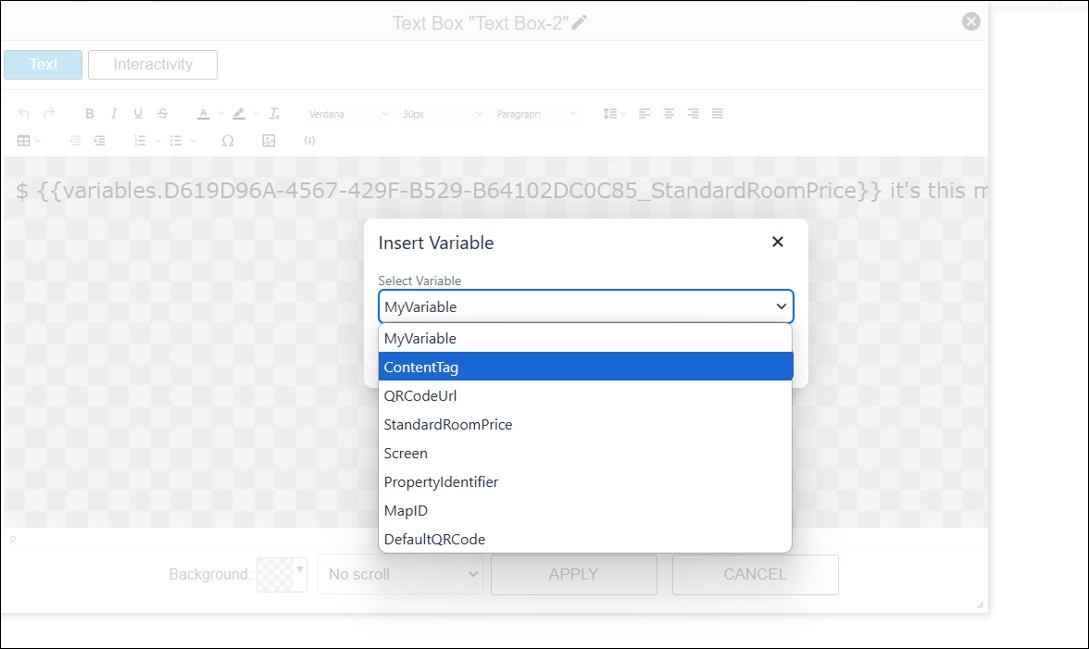
Text Box Widget
Refer to a variable value in the text box widget by choosing the new {;} icon, located in the formatting row.

Setting Content Tags
When a Content Tag variable is created, the value must be assigned to either a site or device that inherits the variable.
If no content tag is selected, content may be skipped during playback.
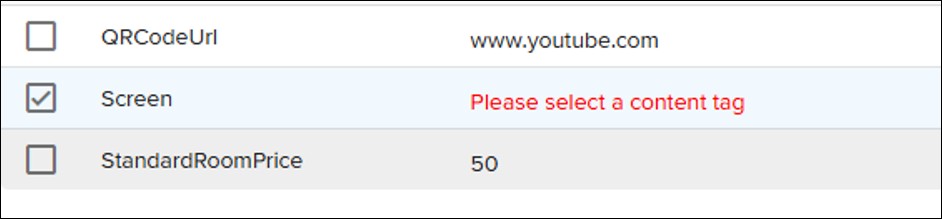
Assign the content tag from the Variables module at either the Content Provider, Site Administration, or Signage Screen.
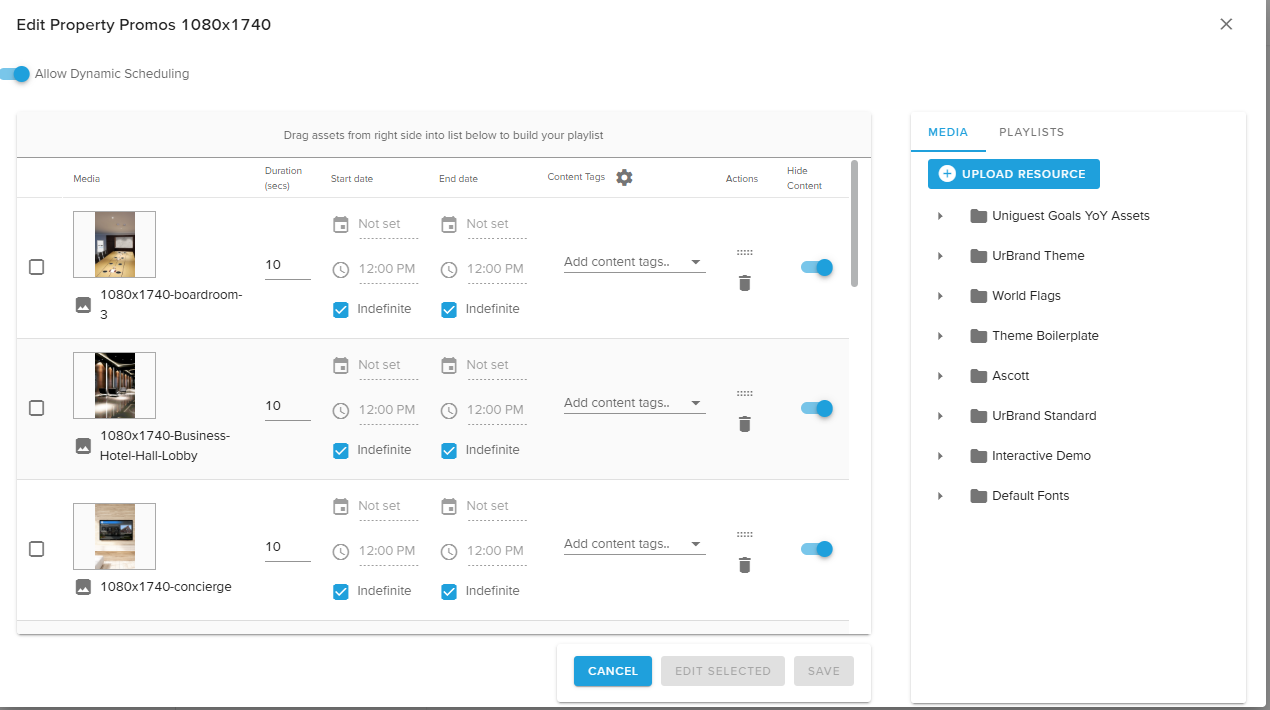
Content Tags that are created in a Content Provider may be assigned to an entire site or to individual devices.
Content Tags are most useful in a Dynamic Playlist.
¶ Variable Licensing
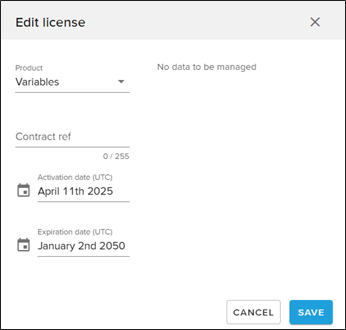
Users do not have access to variables functionality in their environment without the Variables license.
The Variables license added to the site via the Reseller > Sites & Licenses module.
Content Tags are not configurable if this product is not added. Additionally, Dynamic Playlist Variable Management user permissions are required to create and edit content tags.
NOTE: Dynamic Playlist features will not appear in a site if the Dynamic Playlist license is not added to the site as well.