¶ Description
Playlists are a list of rotating image and video media that can be configured either as full screen content or embedded within a signage template using the Playlist widget.
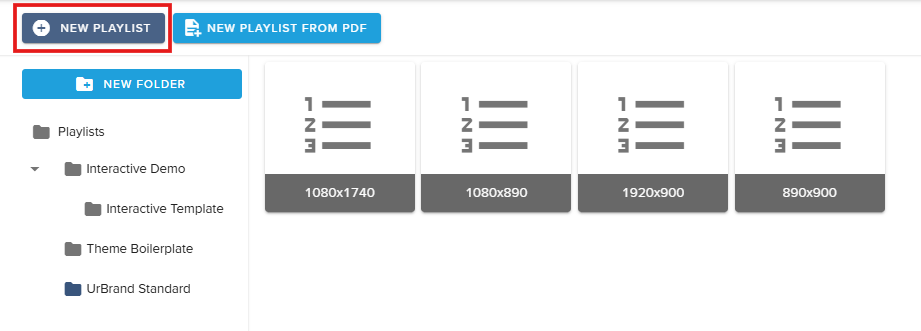
The playlist editor is available under Content → Playlists by double-clicking an existing playlist or choosing “New Playlist”
¶ Standard Playlist
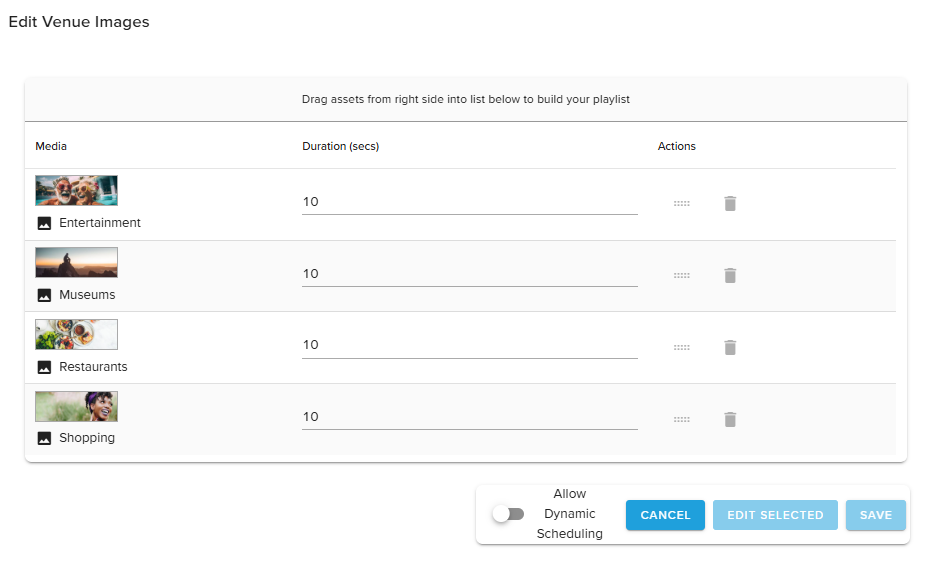
By default, playlists include parameters to:
- Add a video or image to play in rotation
- Specify playback Duration in seconds
- Re-order items
- Delete an item

Enable Dynamic Playlists
Dynamic Playlists add additional functionality to the playlist, including Date/Time scheduling and Content Tagging.
Dynamic Playlists are not enabled in a site by default. To enable the features of Dynamic Playlists for your site, navigate to the Content > Configuration module on the lefthand side of Hub.
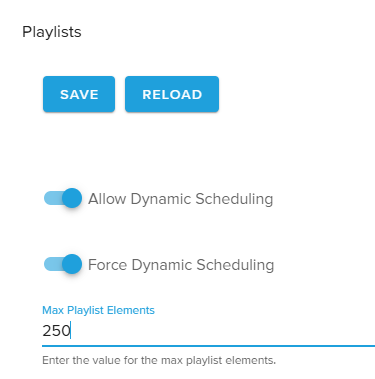
Now you may make the below adjustments:
- Allow Dynamic Scheduling :: When selected, users will see an optional toggle at the top of all Hub playlists that permits them to disable or enable Dynamic Playlist features.
- Force Dynamic Scheduling :: When selected, all new playlists will be enabled with Dynamic Playlist features.
- Max Playlist Elements :: Set a maximum row count for dynamic playlists, limiting the quantity of videos and images that may be added to an individual playlist.
¶ Date/Time Scheduling
Scheduling date ranges
The Start date and End date columns allow a user to specify when playlist content is eligible to start and stop displaying (within the context of the schedule in which the playlist is assigned to the sign).
- The Start date column restricts content playback until the specified date and time.
- The End date column restricts content playback after the specified date and time.
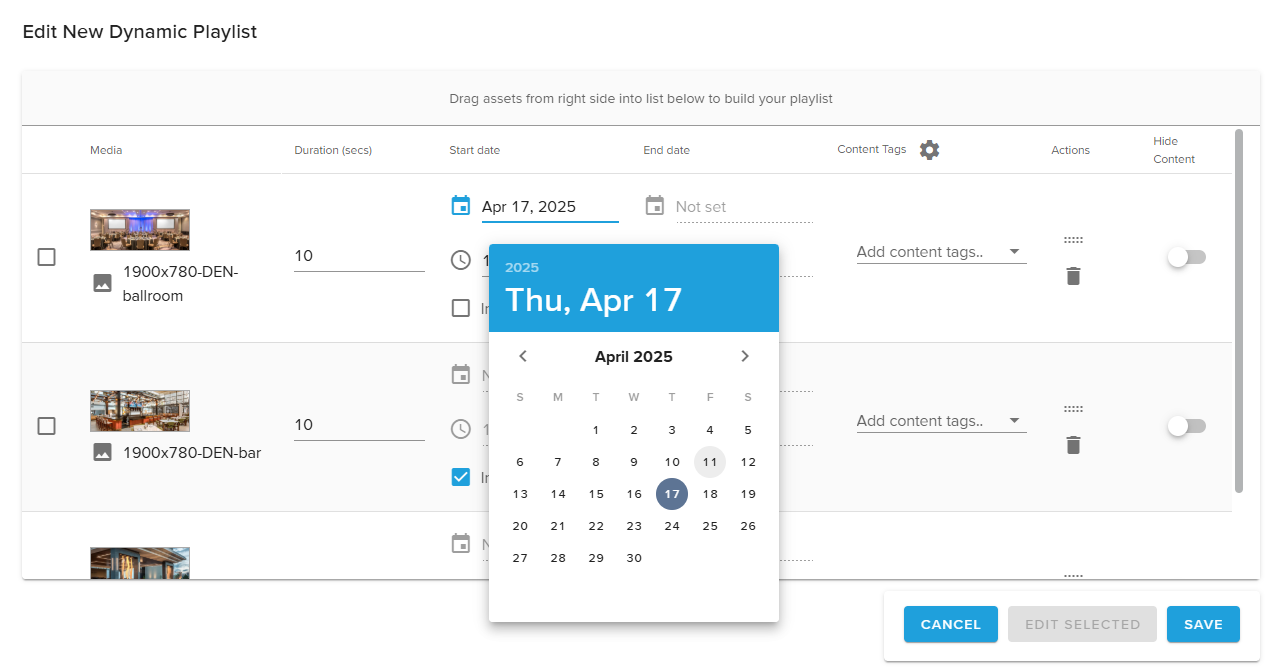

Indefinite checkbox
Content set Indefinitely has no start or end date restrictions. It is determined to be immediately and indefinitely eligible for playback.
The Indefinite parameter may be used with the Start date but not the End date, and vice-versa.
When a user unchecks the Indefinite toggle, they may select a start or end date from the desired column.
¶ Content eligibility warnings
In scenarios where the content’s end date has passed or the start date is set to a date after the end date, red warnings will appear to prompt the user to adjust scheduling. Please note the playlist may be saved without making changes, but affected content will not display.
¶ Scheduling Recommendation
All playlist scheduling is restricted by the method in which the playlist is scheduled for playback on a sign in the Signage > Schedules module. For best results, please use dynamic playlists or any templates where they are configured using the Playlist widget by assigning them to the Default Content schedule. When the scheduling in the Schedules module conflicts with the Start date or End date in the Dynamic Playlist, the Scheduling module’s schedule will be prioritized.
¶ Content Tags
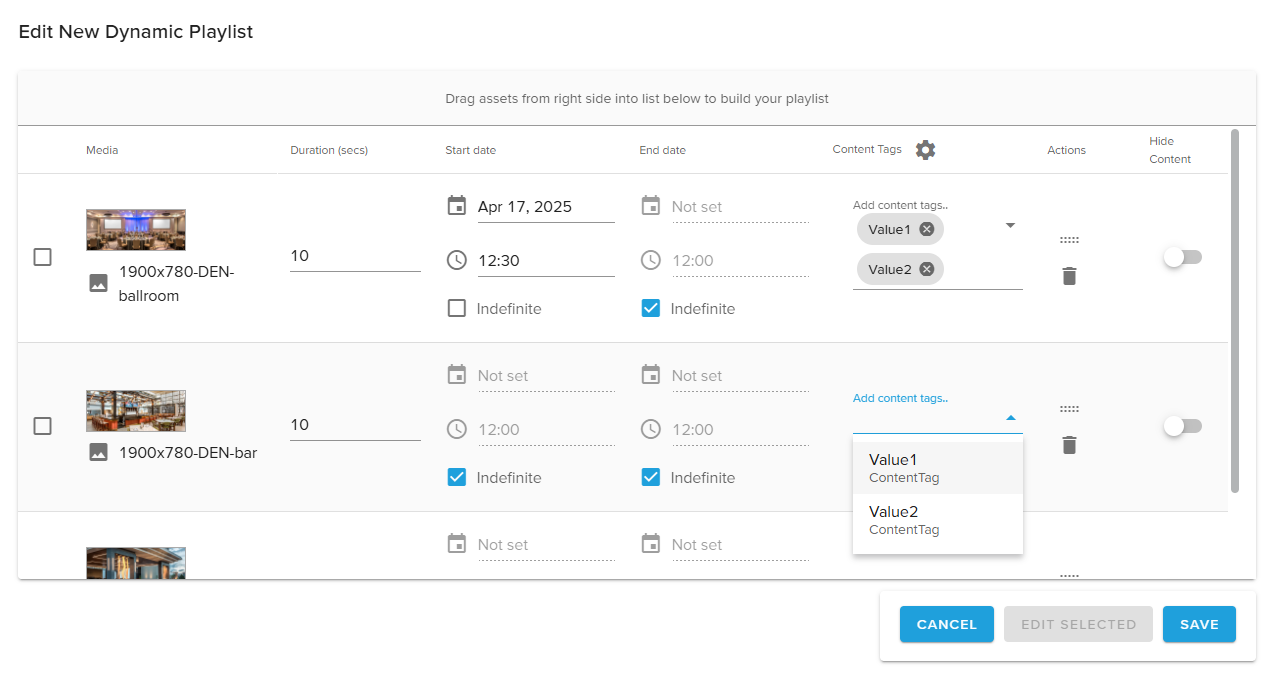
On a Dynamic Playlist, users may set Content Tags to restrict which sites or signage endpoints are eligible to display a particular piece of media.
Content Tags are predefined value lists that can be associated with playlist continue and a player. When the value assigned to a player matches the value assigned to an image or video in a playlist, the content is considered eligible for playback on that endpoint.

Create New Content Tags
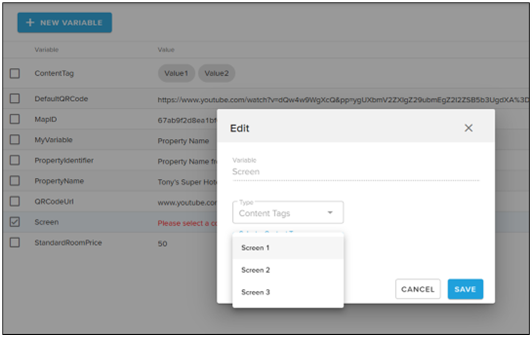
Before assigning content tags to players or playlist media, they must be created in the Variables module first.
- To create a new content tag, access the Administration > Variables module on the lefthand side of the Hub page.
- Choose the blue New Variable button along the top.
- Enter the a unique name, without spaces, for your Content Tag.
- Select Content Tags from the Type dropdown menu.
- Enter the desired Content Tag values in the field that appears below the dropdown. Use the tab or enter keys to submit each content tag value and add another.
- Click on the X icon to delete a content tag.
¶ Use Content Tags in the Dynamic Playlist
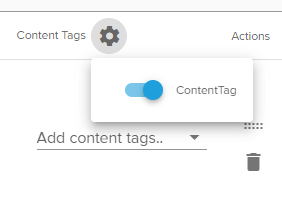
To enable the desired content tags for your media, choose the gear icon in the Dynamic Playlist.
Now, users can assign content tags to a row and restrict where that media will play.
Single or multiple content tags may be added or removed as desired.
If the Content Tag field is left blank, Hub will assume the row is eligible to play everywhere.
¶ Hide Content
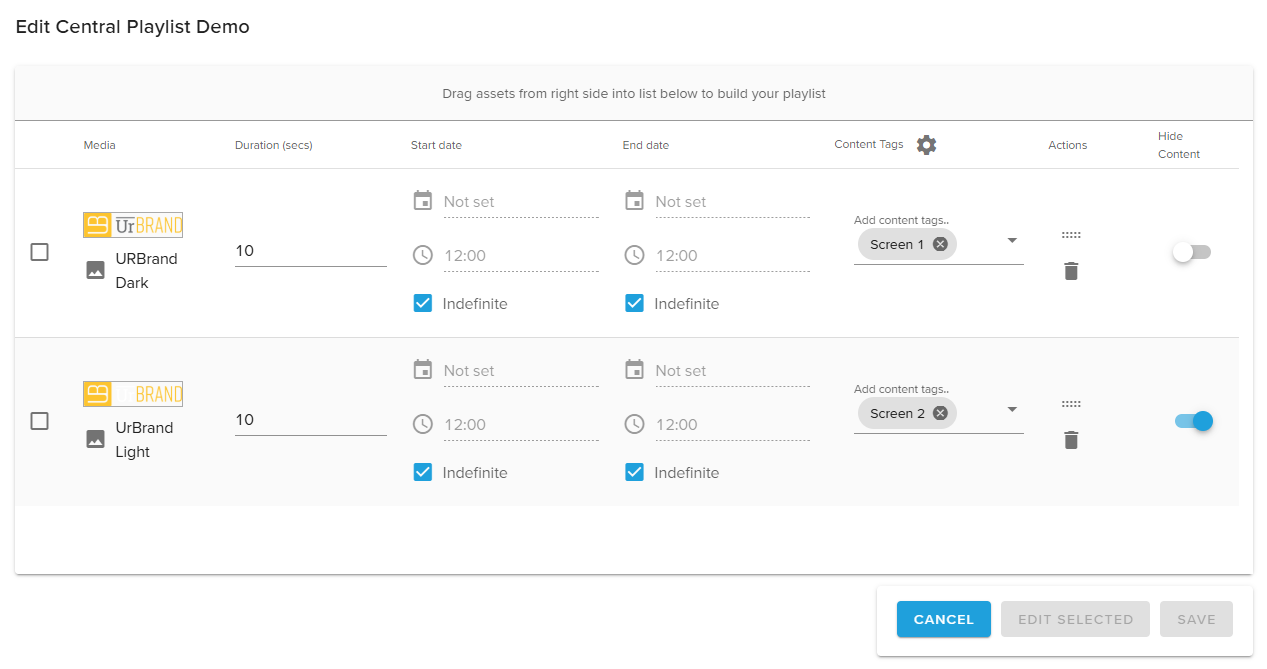
When Dynamic Playlists are shared via a Content Provider, the Content Provider user may enable the Hide Content toggle to allow for some site-level editability of the dynamic playlist.
¶ Behaviors
When the Hide Content toggle is disabled on the Content Provider, playback of that row is enforced whenever the dynamic playlist is used at a connected site.
When the Hide Content toggle is enabled, site-level users will have the option to exclude that particular row from playback on their signs. This only affects the individual site that is opting out.
¶ Different appearances in the Content Provider and Site
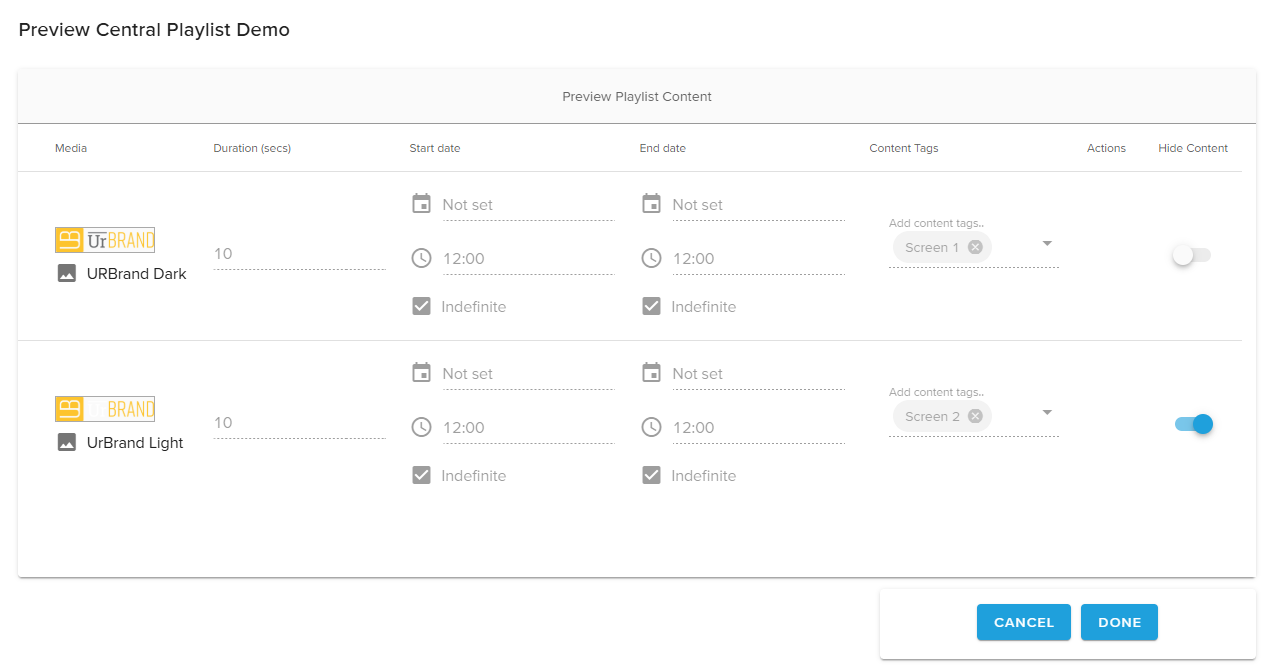
When a Dynamic Playlist is viewed from the Content Provider, all toggles under this column may be enabled or disabled. A user responsible for managing Content Provider assets may specify whether a row within the playlist is “optional” for sites where it is shared.
When viewed at the connected site, toggles that were left disabled in the Content Provider show as greyed-out for the site-level user. The site-level user cannot edit this content to exclude a row from playback.
Toggles that were enabled in the Content Provider are now editable by the site-level user. By default, they are disabled at the site level, meaning that the content will be included in playback. But a site-level user may now activate the toggle to exclude that row from playback with the rest of the Dynamic Playlist’s content, if desired.
¶ Multiselect/Edit Multiple Rows
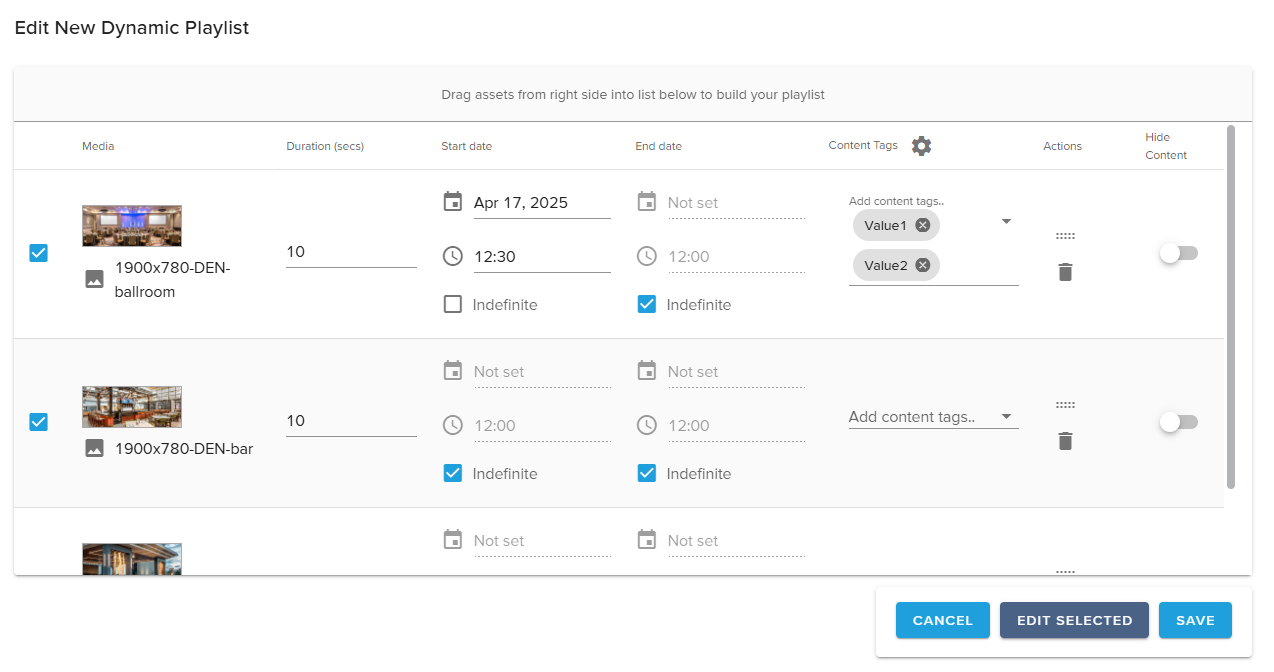
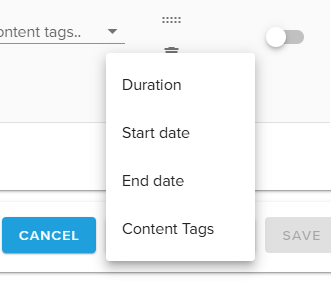
Use the checkboxes to the left with the new Edit Selected option to make changes to multiple rows simultaneously.
¶ Dynamic Playlist & Variable Licensing
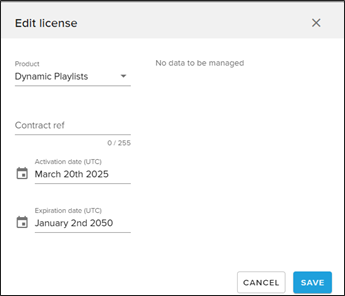
Users do not have access to dynamic playlist functionality in their environment without two licenses:
1) Dynamic Playlist license added to the site via the Reseller > Sites & Licenses module.
Dynamic Playlist features will not appear in a site if this product is not added.
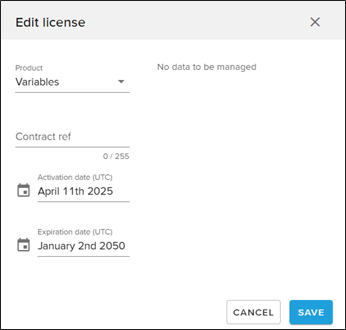
2) Variables license added to the site via the Reseller > Sites & Licenses module.
Content Tags are not configurable if this product is not added. Additionally, Dynamic Playlist Variable Management user permissions are required to create and edit content tags.